
F-Droid on ChromeOS: trying to get behind the road blocks
Source: Dev.to
Installing F‑Droid on Chrome OS without Developer Mode
F‑Droid has been a trusted source for high‑quality open‑source Android apps for many years. While Chrome OS devices come with Google Play (provided it is enabled in Settings), having F‑Droid available offers a gateway to a vast ecosystem of privacy‑respecting software.
F‑Droid is not available on Google Play. Instead, you usually download it directly from the official project homepage at .
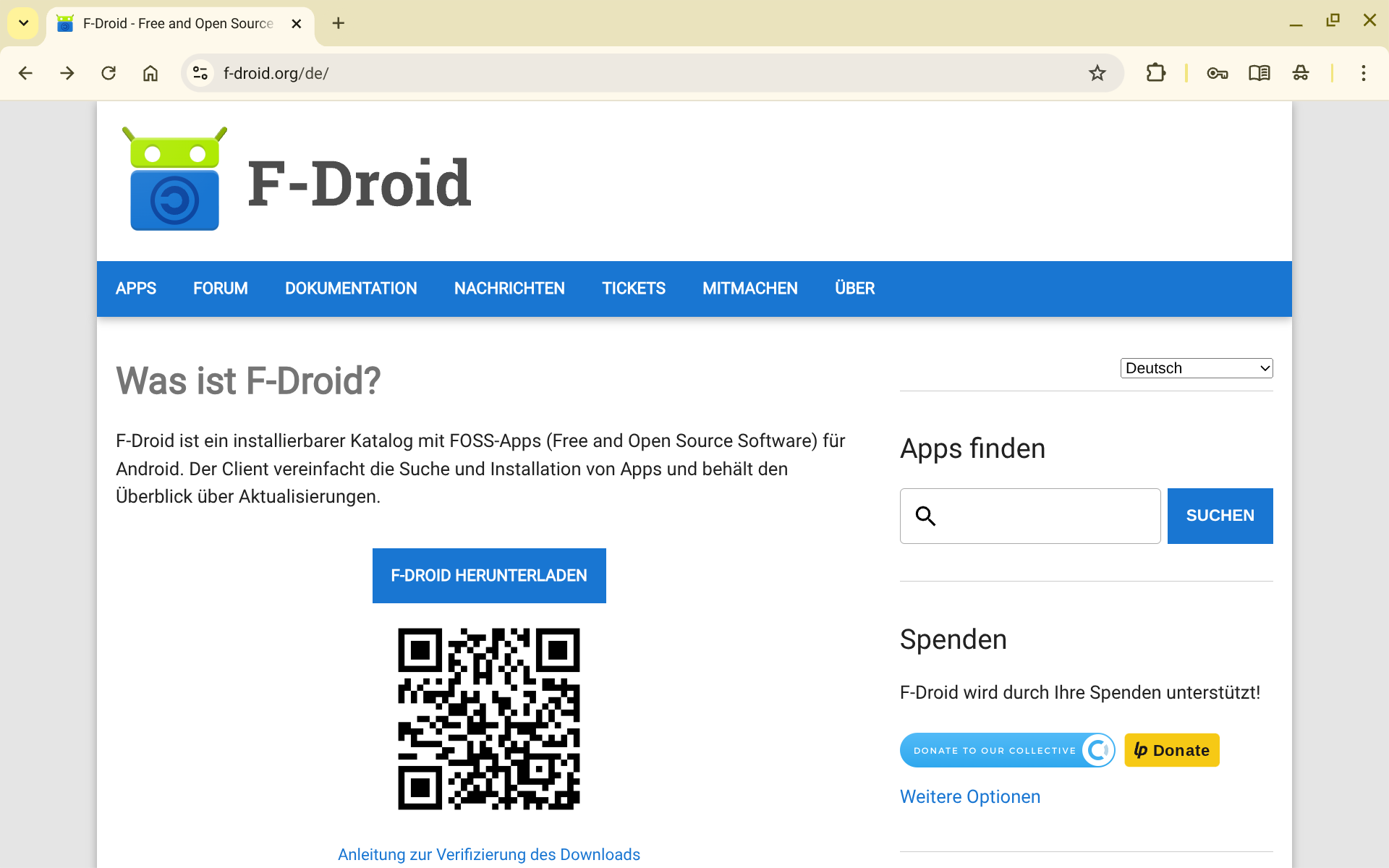
1. Download the APK
Once the download is complete, your first instinct will likely be to open the APK file using the Files app:
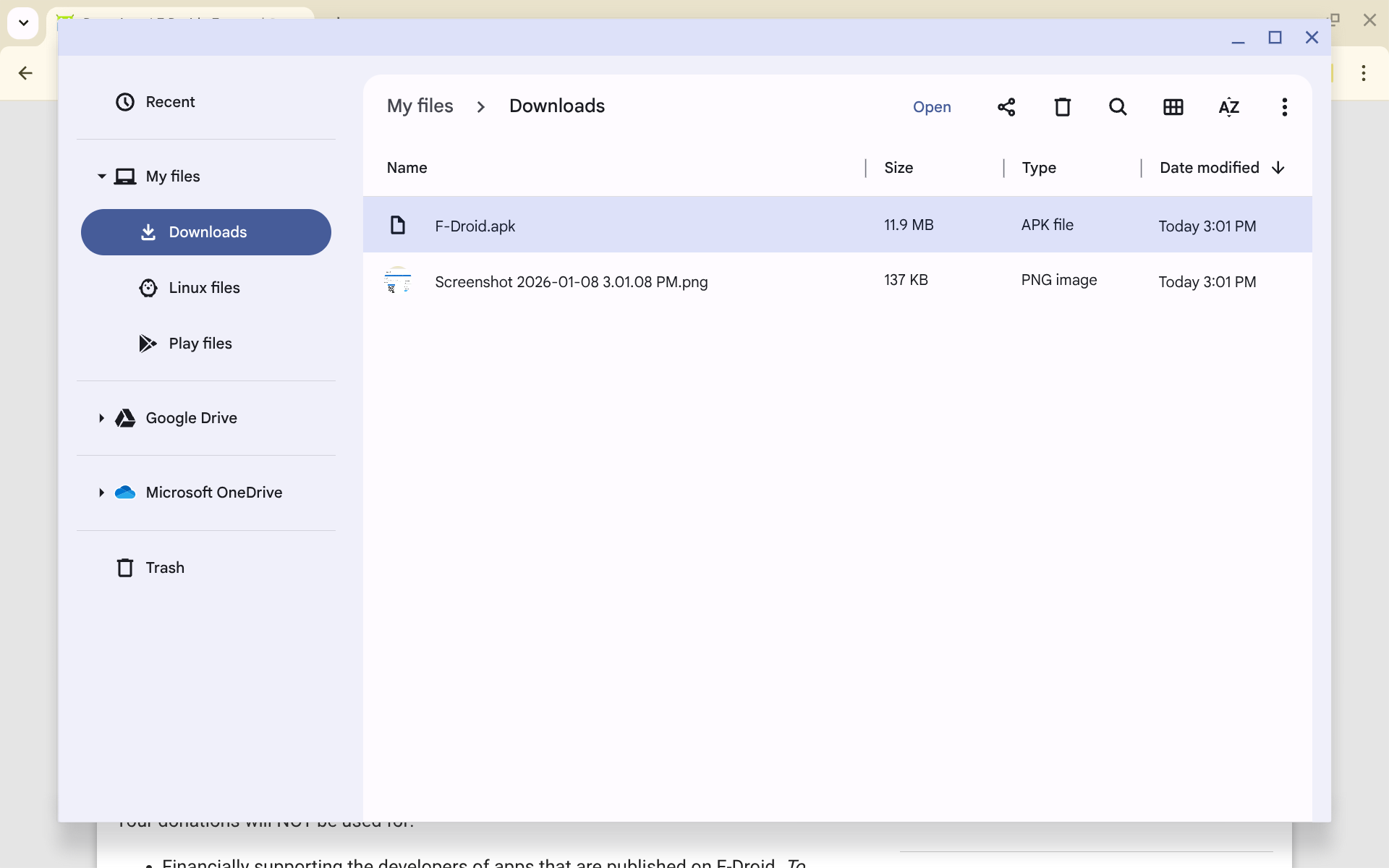
Unfortunately this shows a message saying “Turn on Chrome OS Developer mode to install apps from sources other than the Play Store.”
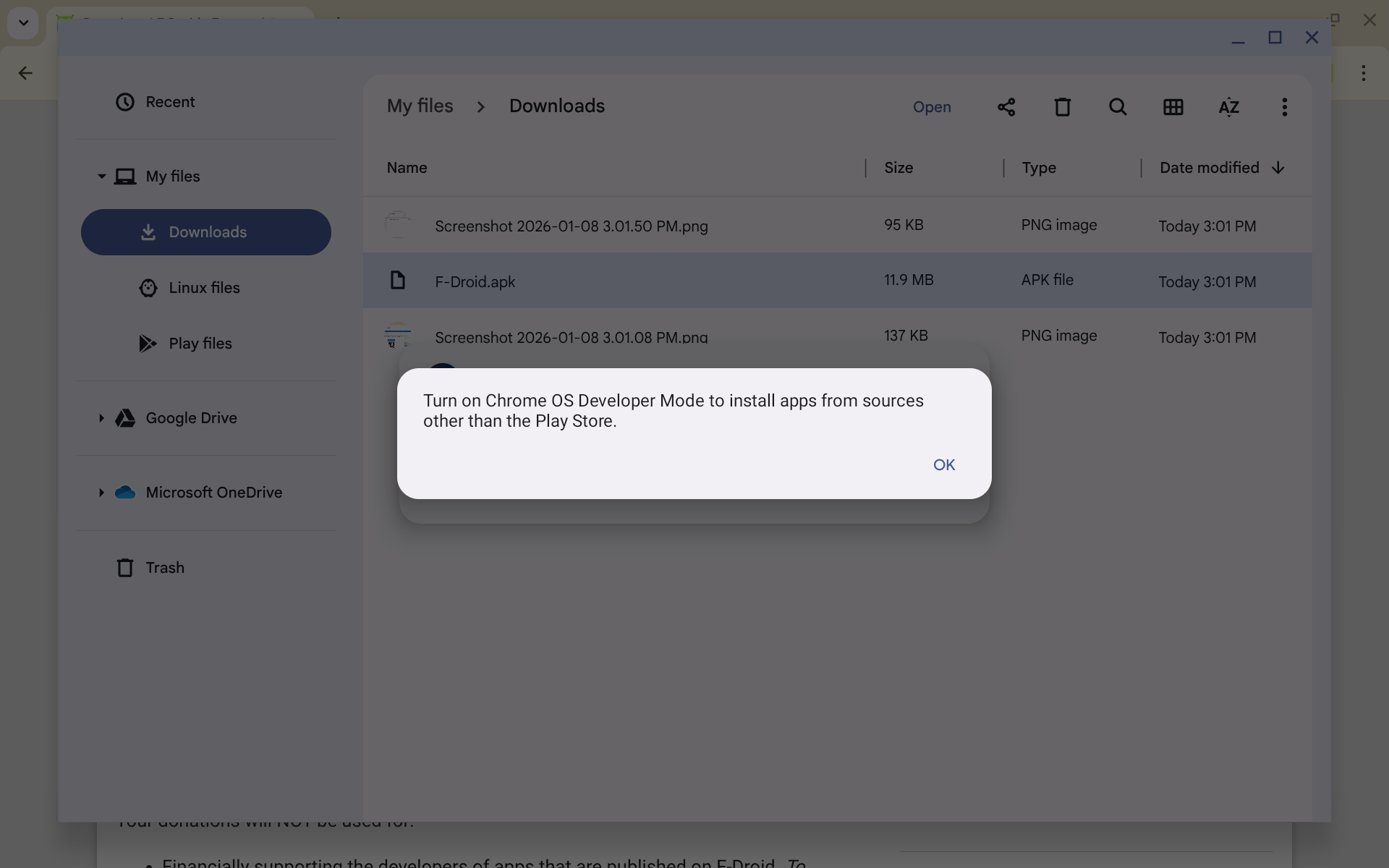
That sounds scary, doesn’t it? It’s also simply not true. You do not need to enable full‑blown Developer Mode (which can open up more severe security issues). Instead, you can enable ADB debugging.
2. Enable ADB debugging
In Settings → Develop Android apps, toggle ADB debugging on.
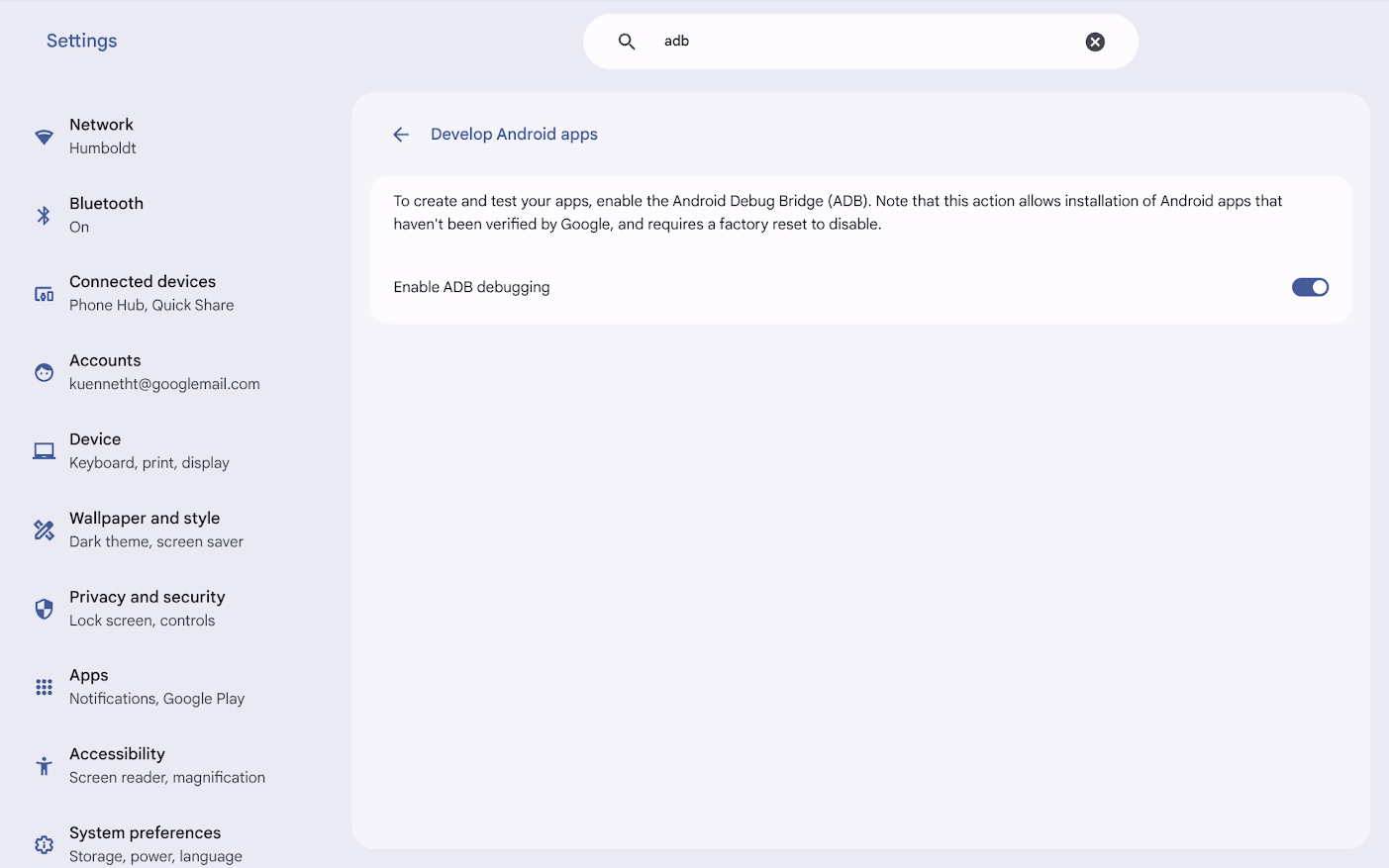
3. Install the APK via ADB
Open the Chrome OS Terminal (the Crostini Linux container) and install the required tools:
sudo apt update && sudo apt install -y android-tools-adb curlConnect the Linux container to the Android subsystem:
adb connect 100.115.92.2:5555You may need to manually authorize the debugging link on the Chromebook screen and confirm the installation.
Download the latest F‑Droid APK and install it:
curl -L https://f-droid.org/F-Droid.apk -o fdroid.apk
adb install fdroid.apk
4. Using F‑Droid
After opening F‑Droid you can browse the catalogue. However, trying to install an app may still show an error saying you need to enable Developer mode.
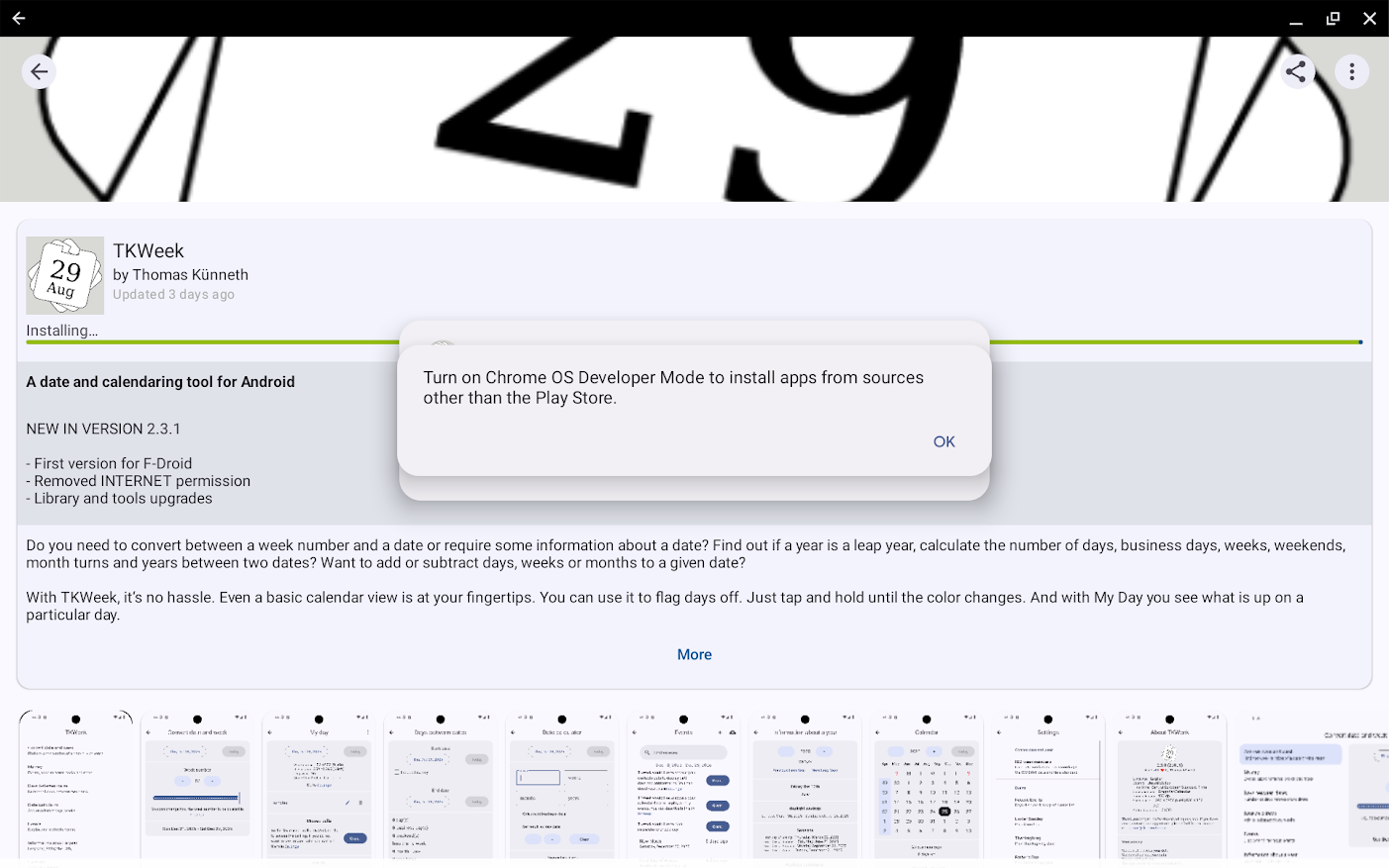
Wait a minute. There’s something in Settings, right?
Yes – Install unknown apps.
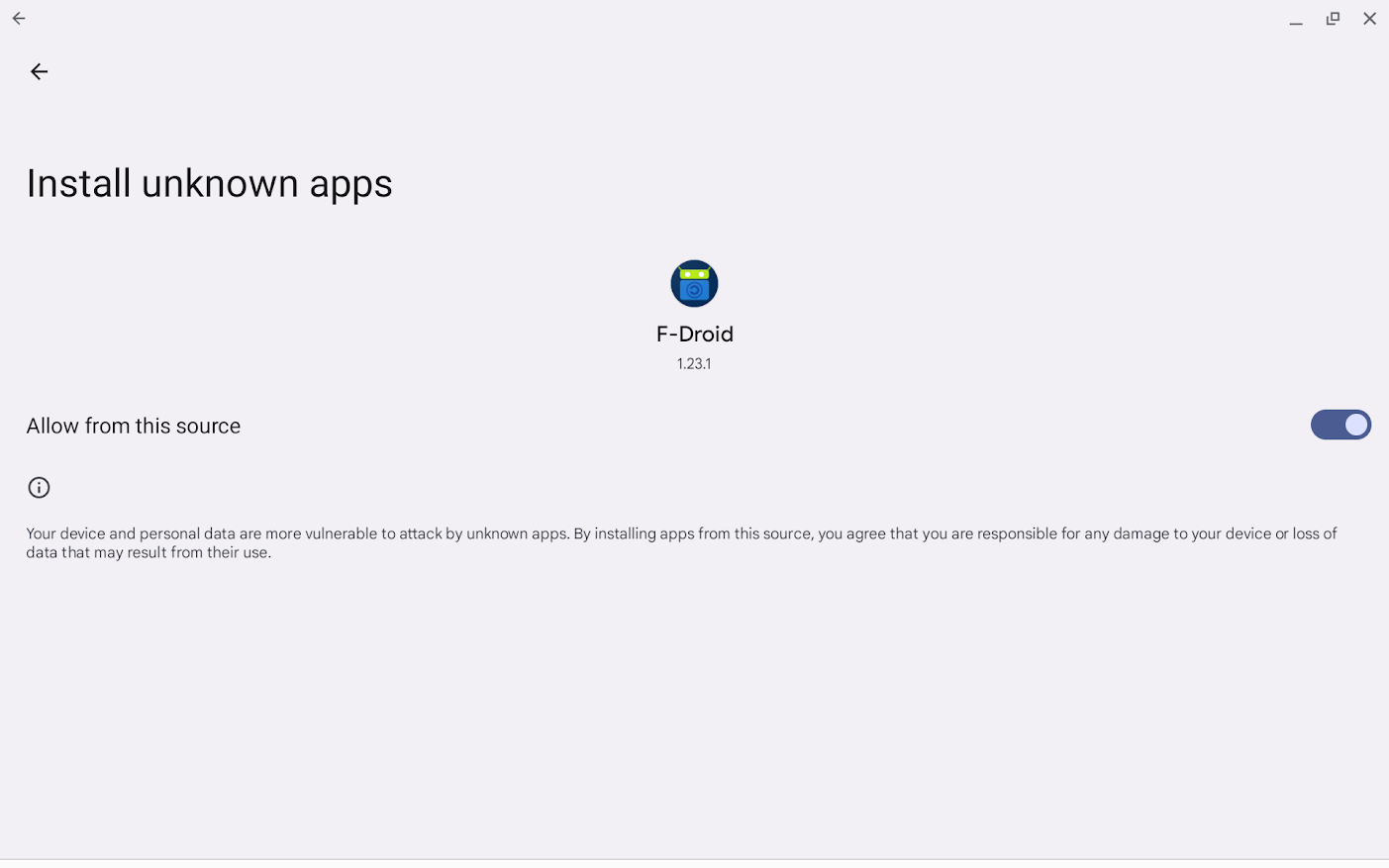
Unfortunately, enabling this does not change anything. Trying to grant the permission via the command line gives a brief explanation:
adb shell pm grant org.fdroid.fdroid android.permission.REQUEST_INSTALL_PACKAGES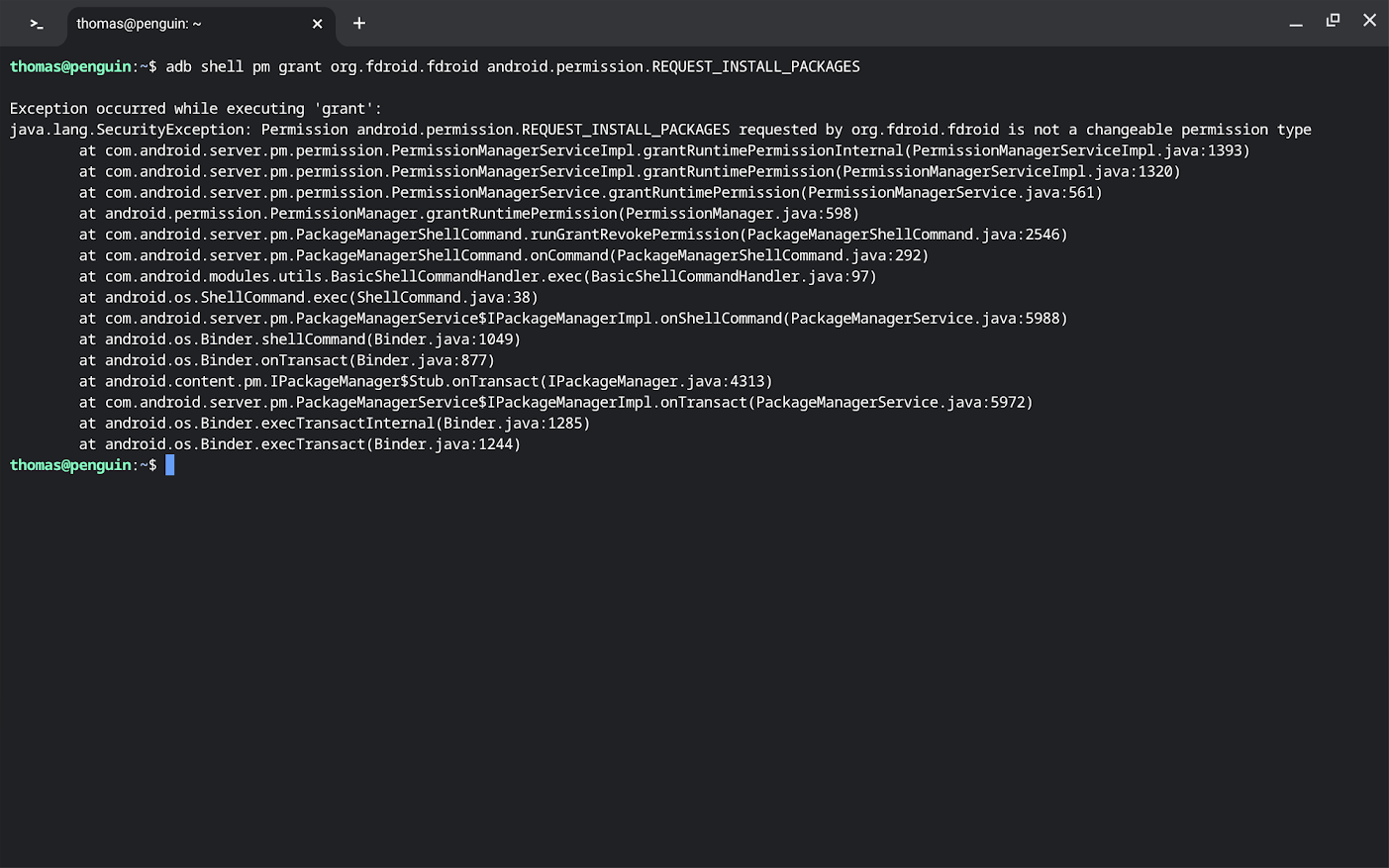
Conclusion
So, what can we make out of this?
- You do not need to put your Chrome OS device into full Developer Mode to install Android apps (most of us already knew that 😅).
- Enabling ADB debugging is sufficient for sideloading APKs, including F‑Droid.
- While Google tries hard to persuade you otherwise, switching on full Developer Mode is usually a bad idea because it opens additional security risks.
Next steps: If you still encounter “Developer mode required” messages inside F‑Droid, make sure the Install unknown apps toggle is enabled for the F‑Droid app (Settings → Apps → F‑Droid → Install unknown apps). After that, you should be able to install apps from the F‑Droid catalogue without ever enabling full Developer Mode.
Android vs. ChromeOS App Installation
Tying users to Google Play is in Google’s interest, whereas allowing alternative app stores definitely is not. We see the hesitation on plain Android—it took lawsuits and a lot of developer backlash to force Google into making the installation of Play Store alternatives less painful. And it will take Android 17.
Regarding ChromeOS, having apps download and install other apps seems, at least for now, impossible for ordinary users.
One final thought
Since F‑Droid has been the hook for this article, I feel the need to praise them as much as possible. They continue to be a landmark institution for Android open‑source software and have done so for many years. It’s certainly not their fault that they can’t easily be used on ChromeOS.