
Custom Logging in Power Automate
Source: Dev.to


Easy, practical DIY approach using SharePoint Online lists
📅 Originally published January 1, 2025
Examining Events, Errors and Outcomes
Handling errors gracefully within your flow logic is important. Plenty of guidance exists:
- Error Handling – THE FLYING POLYMATH
- Try Catch – D365 Demystified
- Error Handling Standards – Matthew Devaney
How can we investigate exceptions without wading through countless pages of flow run history?
If integrating with Azure Application Insights isn’t in scope and the information in the Automation Center isn’t granular enough, consider custom event logging.
Scenarios / Use Cases
- 🏭 Performing bulk‑content operations where a certain failure rate is expected
- 📆 Building solutions that involve chronological activities and events
- 🧺 Collecting flow errors in a centralized location instead of relying on “push” notifications
- 🤖 Providing visibility to runs from higher environments or from a service‑account context
- 🖥 Displaying flow outcome data adjacent to the automation context (for SPO scenarios)
Log List Examples
Approval Event History
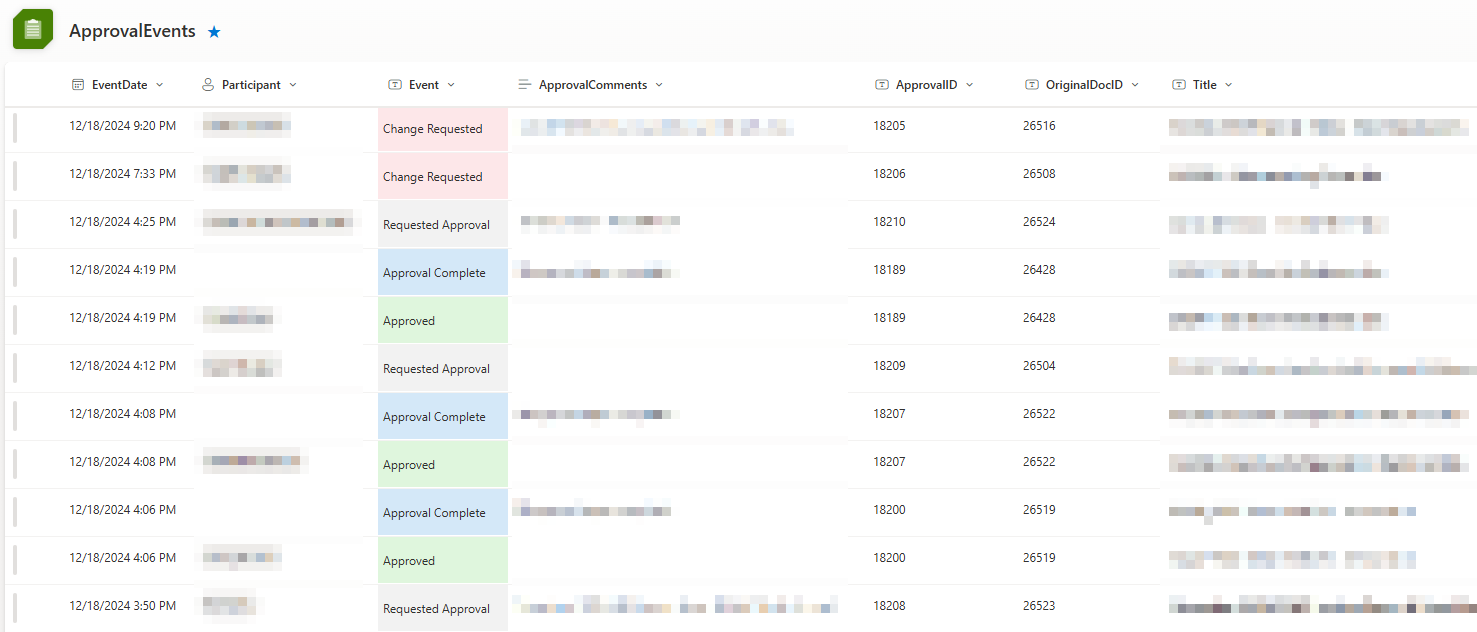
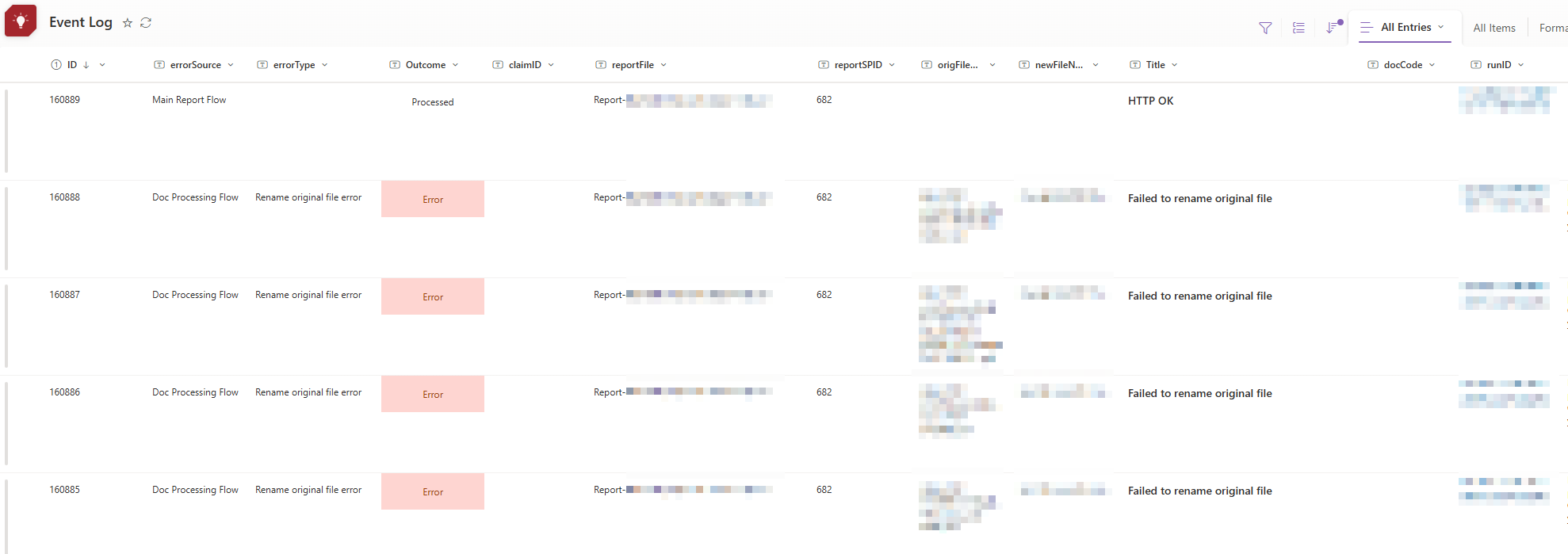
Scheduled Automation
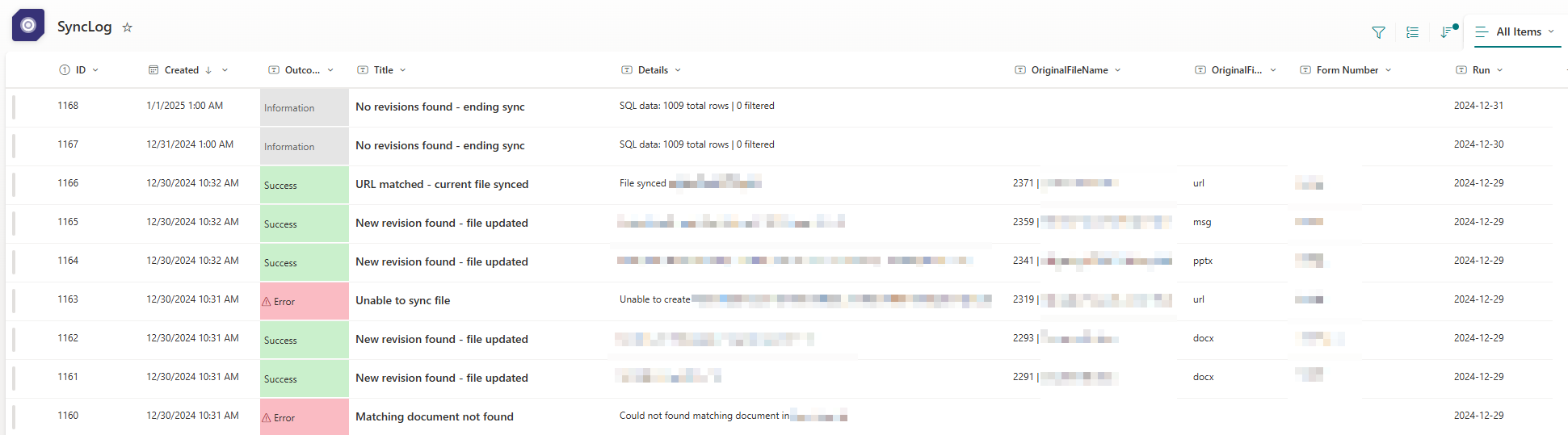
Bulk Content Sync
Creating a Log or Event List
Columns
There’s no perfect recipe, but a typical list includes:
- Run outcome (success, error, warning, etc.)
- Outcome details
- Associated item title
- Associated item ID
- Flow run ID
Add any scenario‑specific columns you need.
Tip: Keep it simple – use single‑line text columns whenever possible. Avoid choice fields, lookups, or other complex data types.
For ALM scenarios you may also want:
- Flow name
- Solution name
- Environment
Configuration Tips
-
Disable search on the list (Advanced Settings) or restrict permissions to the relevant audience.

-
Index any columns you’ll need for sorting or filtering.
-
Include a multi‑line plain‑text column if you want to store JSON output.

-
Create views and add custom column formatting (see Microsoft Docs) to improve readability.
-
After entries start populating, revisit the list – you may think of additional fields worth capturing.
Cloning an Existing List
Assuming custom logging proves useful, you may want to create more lists by cloning an existing one and adjusting the columns/views to suit the new scenario.
(Content continues…)
Adding Logging Actions
Once your list is ready, it’s time to add some flow logic. New log entries will be added using a Create Item action.
There are two general approaches for adding logging steps – both achieve the same result, but have different considerations.
1. Add to Existing Flow(s)
You can sprinkle logging actions within your existing flow logic, utilizing copy / paste.

| Pros | Cons |
|---|---|
| Simple, fast approach | If the list schema changes, you may need to update (and find) all previously‑added actions |
| No additional licensing cost | Cannot add additional actions later (e.g., sending notifications) unless done manually |
| Can store complex data types, JSON | |
| Uses existing SharePoint Online connection / reference (if present) |
2. Create a Standalone Logging Flow
Alternatively, create a separate flow (HTTP trigger or child solution flow) to store your logging steps.

Once created, invoke it from existing flow(s) as needed:

| Pros | Cons |
|---|---|
| Much easier to extend later, if needed | Additional setup time and complexity |
| Can handle complex data types (HTTP trigger only) | Requires premium licensing (HTTP trigger only) |
| One logging flow can be shared by multiple solutions / flows | Need to collect and send parent workflow context |
| Option to run asynchronously – won’t hold up parent flow |
💡 Tip: Don’t forget a Response action (for HTTP‑trigger flows) or Respond to Power Apps or Flow action (for child‑solution flows).
Other Notes
-
Retry policies – Consider disabling retry policies whenever a standalone logging flow is invoked or a Create Item log action is called. You don’t want to hold up a parent flow run if logging hits a snag.
-
Hierarchical logging – For logging hierarchical flow outcomes, create an entry when the parent begins, ends, and for every child iteration in between. Store a shared identifier (e.g., parent flow run ID) to help group entries later.

-
Aggregated metrics – Calculating overall flow‑run duration, error and success totals, etc., can add value to the final log entry for a given run. Only add this logic if the extra insight is worth the effort.
-
Scope of logging – You can use the technique described here to store errors / exceptions only, or you can include successful outcomes and other event types, depending on the situation.
Tools & Options Mentioned
-
ShareGate – migration tool
-
Microsoft Lists – native SharePoint list solution
Use an existing list option in the SharePoint UI (under Site contents)
