
Cuneflow's e-paper writing tablet uses AI to record and transcribe meetings
Source: Engadget
Cuneflow Review – A Voice‑Enabled E‑Paper Slate for Business Meetings
I recently reviewed reMarkable’s Paper Pure, an e‑paper writing tablet designed to be used in business meetings. The company markets itself as an almost‑analog space to think, pushing against the use of AI and the distractions of the digital age. Think of Cuneflow, then, as a rebuke of that philosophy: its namesake e‑paper writing slate has a built‑in voice recorder to transcribe and extract insights from those very same business meetings. Is that a big enough draw for you to plonk down your money when it launches on Kickstarter?
Hardware
- Display – A5‑sized, 8.2‑inch 1,920 × 1,440 E Ink Carta 1000 panel.
- Stylus – Magnetically attached, passive, pressure‑sensitive Wacom EMR stylus with a button and eraser tip.
- Processor & Memory – 2 GHz dual‑core ARM SoC, 4 GB RAM, 128 GB internal storage.
- Battery – 2,450 mAh, rated for 7–8 hours of continuous use.
- Frontlight – 24‑level front‑light for use at any time of day.
- Security – Lock‑screen password plus power‑button fingerprint scanner for one‑touch unlocking.
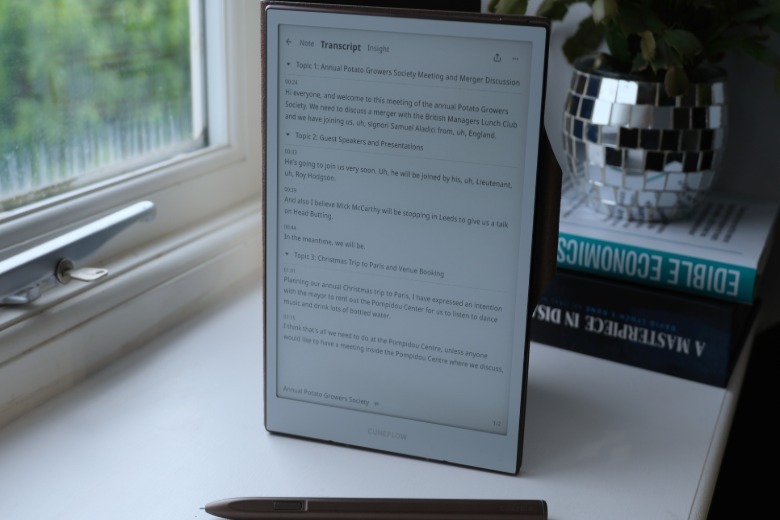
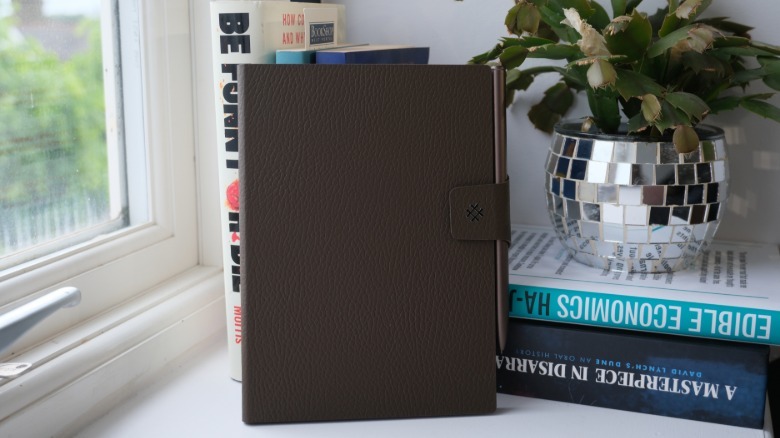
- Build – Aluminum unibody, 230 g (8.1 oz), a little heftier than a Kindle but feels ultra‑premium. Comes with a brown faux‑leather folio for a “capital‑C classy” vibe.
Software & UI
At the risk of sounding uncharitable, the operating system looks like someone pointed at a reMarkable and said “that, but let’s not get sued.”
- Home screen – Two sortable columns: Meetings (your notebooks) and Files (PDFs, EPUBs, etc.). Files are transferred via the company’s web client.
- Meeting notebooks – Blank worksheets ready for scrawls and doodles. The ceramic stylus nib is thin and scratchy, with no replacement tip in the box (a surprising omission given wear concerns).
The writing experience is not bad, but you’re still aware you’re dragging a stylus across a screen. It’s responsive, with no lag or mid‑paragraph refreshes. The persistent menu bar offers only two tools: pen or highlighter. The highlighter, even at its lightest setting, makes handwriting harder to read. Adjusting pen weight requires pulling down a bezel menu—a bit fussy. Overall, it feels less polished than a reMarkable or Kindle Scribe.
Audio Recording & AI‑Generated Insights
Each notebook includes a microphone icon. Tapping it activates recording mode, providing an almost‑instant transcription of the conversation. A flashing red LED beside the USB port indicates when recording is active. After the meeting, you wait a minute or two for AI‑generated insights to appear on the Insights tab. These include:
- Summary
- Timeline
- To‑do list
- Disagreements
- Key questions
- Potential risks
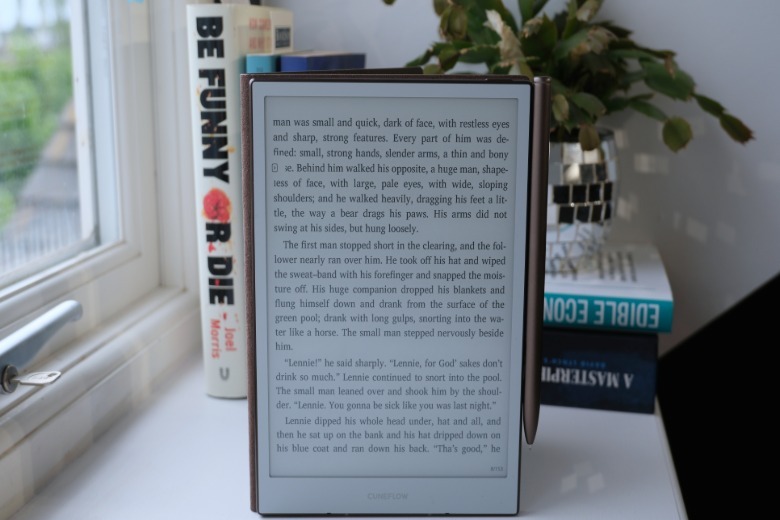
Security: Audio is encrypted, piped to the cloud, and not stored. Cuneflow lists OpenAI and Gemini as the AI services used. Once the transcript appears, the raw recording is wiped, leaving only the AI‑generated text. The Insight tab shows the source of each conclusion, allowing you to verify against hallucinations. Transcripts can be edited after generation, but you’ll likely need to do this while the meeting is still fresh in participants’ minds.
Practical Considerations
- Reliability – Transcripts are generally solid but stumble on uncommon phrases. For example, “Phoenix Corporation” was rendered correctly once, then mis‑spelled as “Felix Corporation” the second time.
- Workflow fit – The approach may suit journalists who need to double‑check quotes, but lower‑stakes meetings might not justify the added complexity.
Usability Issues
- Incomplete interaction – The AI‑generated to‑do list shows tick boxes, but you can’t check them off with the stylus or finger.
- Copy‑paste friction – There’s no easy way to pull text from the transcript or Insights tab into the notebook for doodling, editing, or highlighting.
- Web client (Cunespace) limitations – While you can view Meetings online, you can’t interact with transcripts or tick off to‑do items. This forces you to copy‑paste material into other documents.
Final Thoughts
Cuneflow packs a lot of useful tools into a sleek e‑paper slate, but the lack of seamless integration between those tools hampers the overall experience. The concept of a voice‑enabled, AI‑augmented notebook is compelling, yet the execution feels half‑baked. If you can live with the current workflow quirks and value instant meeting insights, it might be worth backing on Kickstarter. Otherwise, you may find the experience more frustrating than productive.
I was overjoyed to learn you could conn … (the review cuts off here).
I connected a Bluetooth keyboard to the Slate for ease of writing, but, alas, my joy didn't last long.
Unfortunately, you need to open a text box inside the document and then expand it—a process that is deeply fiddly. There’s no way for the box to grow automatically to accommodate your text as you write more; you have to manually pull the handles wider. (Not to mention there’s no way to reorient the display to landscape, which is less than ideal.)

Part of this comes from being a young company with its first product, but also from the limits of what these devices can do. After all, these distraction‑free paper tablets are built to impose sometimes unnecessary roadblocks on our actions. Much like with reMarkable, once you've created a file on the Slate, there's no elegant way to pull that information out and work with it in the traditional manner. Consequently, I'm not sure right now if it's even possible to join the bifurcated use cases in a way that would make sense.

Unfortunately, there's no word yet on how much [Cuneflow](https://cuneflow.com/product?language=en) will cost—the company says it'll be “within the average market range,” with early backers getting a discount.