
Chrome DevTools MCP (2025)
Source: Hacker News
We shipped an enhancement to the Chrome DevTools MCP server that many of our users have been asking for: the ability for coding agents to directly connect to active browser sessions.
With this enhancement, coding agents are able to:
- Re‑use an existing browser session: Imagine you want your coding agent to fix an issue that is gated behind a sign‑in. Your coding agent can now directly access your current browsing session without requiring an additional sign‑in.
- Access active debugging sessions: Coding agents can now access an active debugging session in the DevTools UI. For example, when you discover a failing network request in the Chrome DevTools Network panel, select the request and ask your coding agent to investigate it. The same also works with elements selected in the Elements panel. This enables a seamless transition between manual and AI‑assisted debugging.
The auto‑connection feature is an addition to the existing ways for the Chrome DevTools MCP to connect to a Chrome instance. You can still:
- Run Chrome with a Chrome DevTools MCP server‑specific user profile (current default).
- Connect to a running Chrome instance with a remote debug port.
- Run multiple Chrome instances in isolation, each using a temporary profile.
How it works
We’ve added a new feature to Chrome M144 (currently in Beta) that allows the Chrome DevTools MCP server to request a remote debugging connection. This new flow builds on top of the existing remote debugging capabilities of Chrome. By default, remote debugging connections are disabled in Chrome. Developers must explicitly enable the feature by navigating to chrome://inspect#remote-debugging.
When the Chrome DevTools MCP server is started with the --autoConnect option, it will connect to an active Chrome instance and request a remote debugging session. To prevent misuse, Chrome shows a dialog asking the user to grant permission each time the MCP server requests a remote debugging session. While a debugging session is active, Chrome displays the “Chrome is being controlled by automated test software” banner at the top.
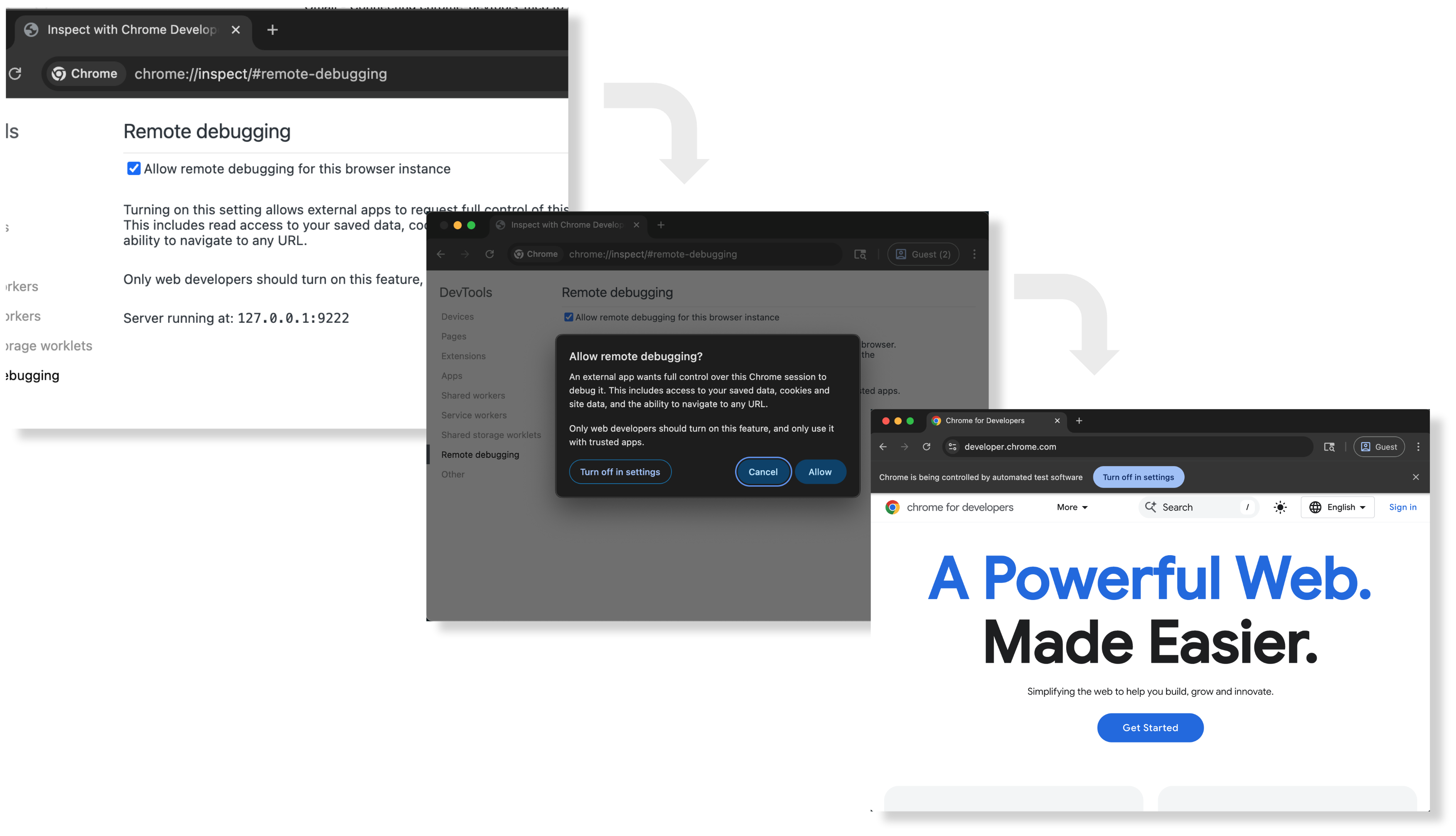
The new remote debugging flow and UI in Chrome.
Get started
Step 1: Set up remote debugging in Chrome
In Chrome (≥ 144), enable remote debugging:
- Navigate to
chrome://inspect/#remote-debugging. - Follow the dialog UI to allow or disallow incoming debugging connections.
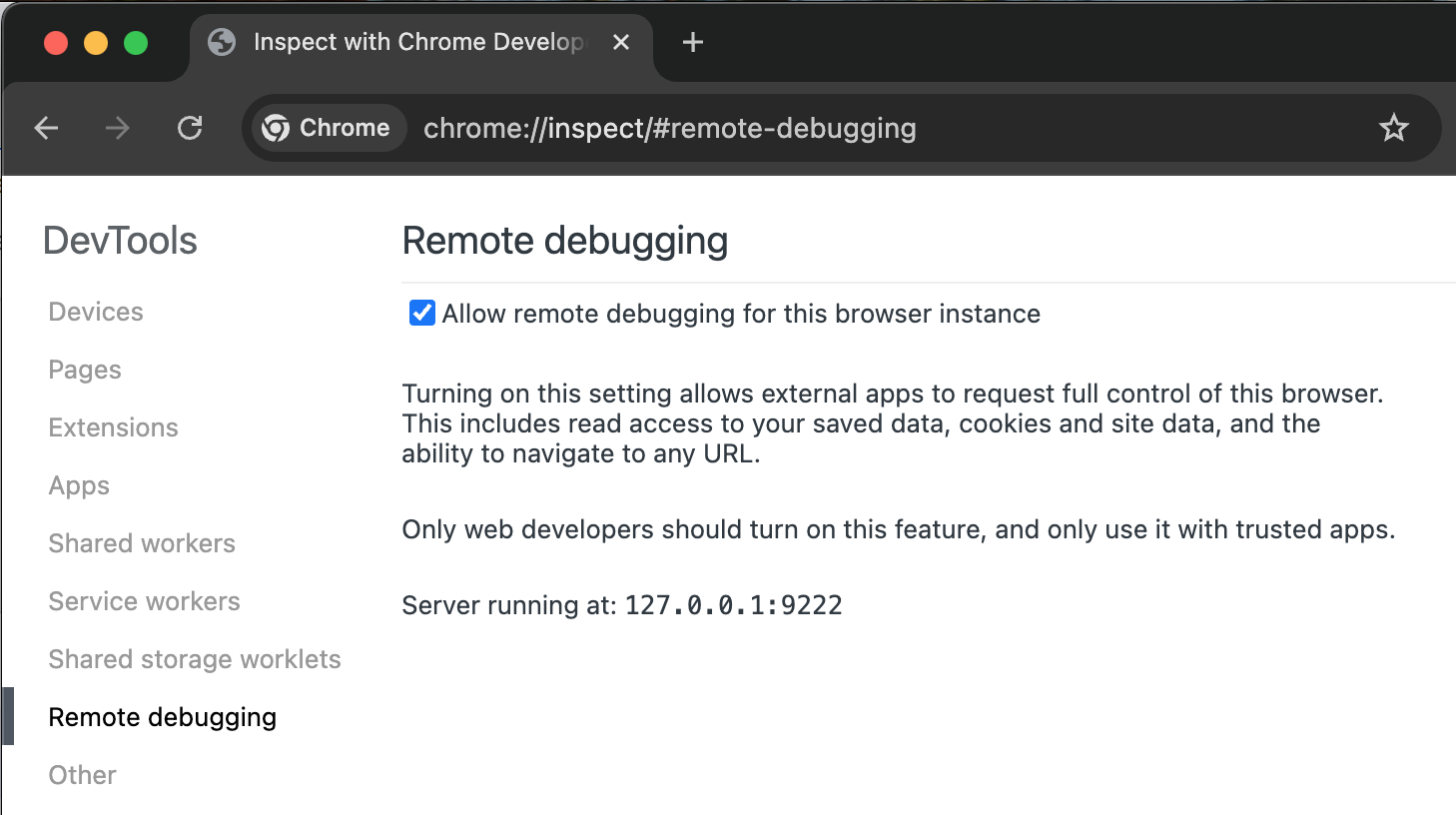
Remote debugging needs to be enabled before clients can request a remote debugging connection.
Step 2: Configure Chrome DevTools MCP server to automatically connect
Use the --autoConnect command‑line argument when launching the MCP server. Below is an example configuration for gemini‑cli:
{
  "mcpServers": {
    "chrome-devtools": {
      "command": "npx",
      "args": [
        "chrome-devtools-mcp@latest",
        "--autoConnect",
        "--channel=beta"
      ]
    }
  }
}
Step 3: Test your setup
Open gemini‑cli and run the following prompt:
Check the performance of https://developers.chrome.comThe Chrome DevTools MCP server will attempt to connect to your running Chrome instance and will display a permission dialog:
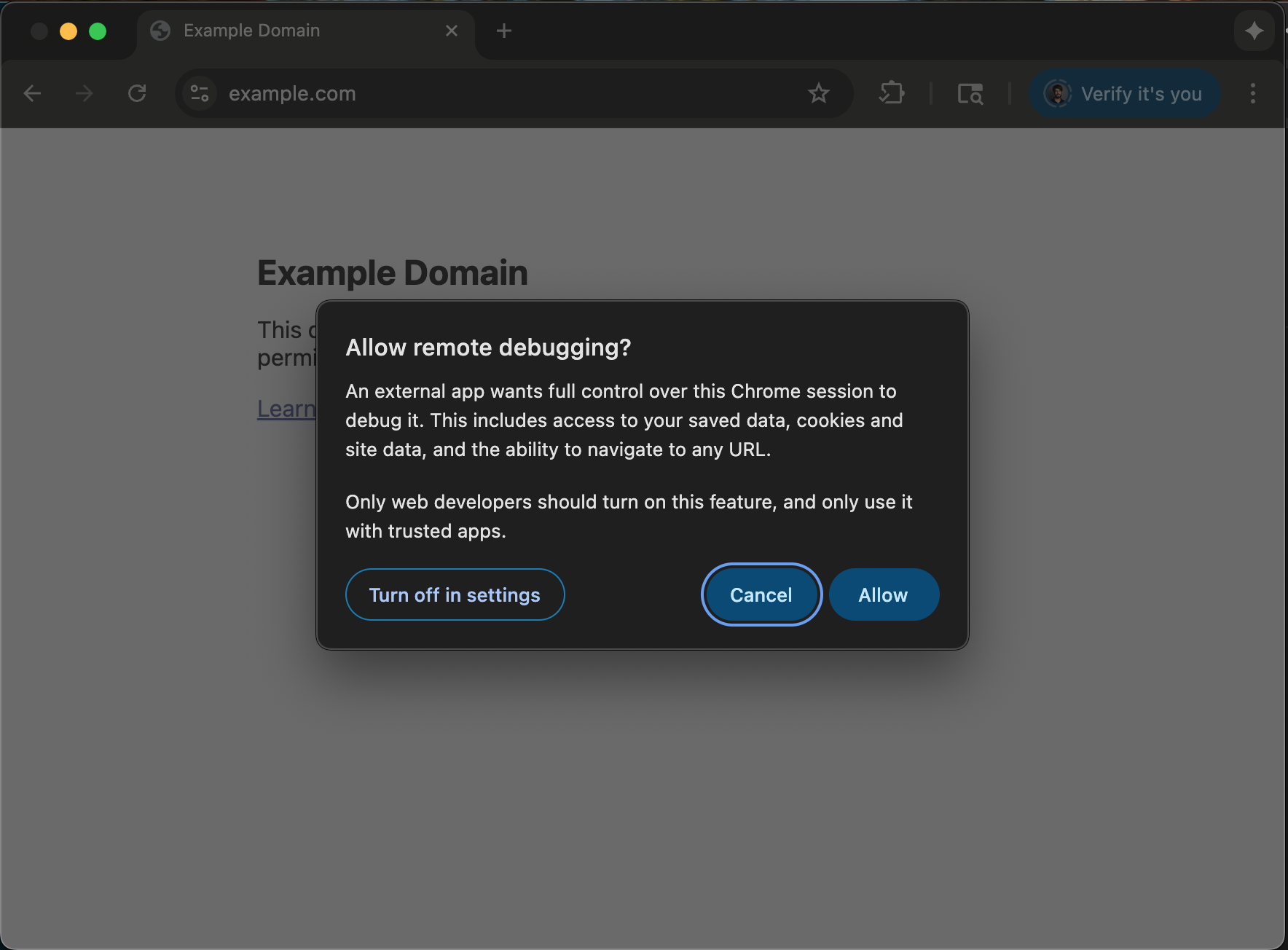
Chrome asking for user permission to start a remote debugging session.
Click Allow. The MCP server will open https://developers.chrome.com and take a performance trace.
For full instructions, see the README on GitHub.
Let your coding agent take over your debugging session
Connecting to a live Chrome instance means you no longer have to choose between automation and manual control. You can use DevTools yourself or hand over a debugging task to your coding agent. For example:
- Open DevTools, select an element in the Elements panel, and ask the coding agent to investigate the issue.
- Select a network request in the Network panel and ask the coding agent to analyze it.
This is just the first step. We plan to incrementally expose more panel data to coding agents through the Chrome DevTools MCP server. Stay tuned!