
Building Least-Privilege Architectures with Kiro Assistance
Source: Dev.to
Author

Introduction
I was wondering if I could create a simple example of a stack that applies the least‑privilege architecture principle using AWS. While brainstorming a practical example, what could be better than using Kiro?
What is Kiro?
Kiro is an AI‑powered assistant developed by AWS to help you reason about cloud architectures while you build them. Instead of just writing code and hoping for the best, Kiro works alongside you, explaining what you’re doing, why you’re doing it, and whether it follows best‑practice guidelines.
You can ask Kiro questions about:
- IAM policies
- CloudFormation templates
- Security decisions
- Architectural trade‑offs
Kiro replies with explanations, suggestions, and improvements—think of it as a knowledgeable AWS companion that helps you move faster while avoiding common mistakes.
Why this example?
For beginners, it’s useful to practice with the most‑used AWS services: S3, IAM, and EC2.
The objective of this practice is to build an EC2 Node.js (Express) application that:
- Reads a configuration file from S3 at startup.
- Writes application logs to a specific S3 prefix.
- Uses an IAM role designed with least privilege from the beginning, assisted by AWS Kiro.
High‑Level Architecture
| Component | Description |
|---|---|
| EC2 Instance | Runs Node.js + Express; uses an IAM Instance Profile |
| IAM Role | Attached to the EC2 instance; scoped S3 permissions |
| S3 Bucket | config/app-config.json → read‑onlylogs/ → write‑only |
| CloudFormation Stack | Defines all infrastructure |
Setup
- Download & install Kiro IDE – https://kiro.dev/downloads/
- Install the AWS CLI for your OS (the example uses Windows) – https://docs.aws.amazon.com/cli/latest/userguide/getting-started-install.html
Screenshots


Generating the CloudFormation Template with Kiro
After installing the tools, I crafted the first prompt for Kiro (or any LLM of your choice). Instead of starting with a permissive IAM role, I asked Kiro to generate a least‑privilege CloudFormation template directly from the application’s security requirements.
Prompt Sent to Kiro
You are helping me design infrastructure using AWS CloudFormation.

I am building an EC2‑based Node.js (Express) application with the following behavior:
- The application runs on a single EC2 instance.
- It reads a configuration file from Amazon S3 at startup:
  • Bucket: one application‑specific bucket
  • Object key: config/app-config.json
- It writes application logs to the same S3 bucket under:
  • logs/

Security requirements:
- The EC2 instance must use an IAM role (no static credentials)
- IAM permissions must follow the principle of least privilege
- Do NOT use wildcard actions (e.g., s3:*)
- Do NOT use wildcard resources (*)
- Grant only the exact permissions required for the described behavior

Infrastructure requirements:
- Use AWS CloudFormation (YAML)
- Define:
  • An S3 bucket for application data
  • An IAM role and instance profile for EC2
  • An IAM policy attached to the role with least‑privilege S3 access
  • An EC2 instance
- The template should be clear, readable, and suitable for a security‑focused article

Please:
- Explain the purpose of each IAM permission you include
- Comment on why broader permissions are not required
- Avoid adding any unnecessary AWS services or permissions
Kiro’s Output
Kiro responded with a full set of files, including:
| File | Description |
|---|---|
stack.yaml | The CloudFormation template |
DEPLOYMENT.md | Documentation on how to deploy the stack |
Screenshots

Figure 1 – The generated CloudFormation files.

Figure 2 – The resulting file list.
Key Takeaways
- Least‑privilege IAM – Only the
s3:GetObjectpermission forconfig/app-config.jsonands3:PutObjectforlogs/*are granted. No wildcards are used. - Kiro as a co‑pilot – It helps you translate security requirements into precise CloudFormation resources, saving time and reducing human error.
- Infrastructure as code – All resources (S3 bucket, IAM role, instance profile, EC2 instance) are defined in a single, version‑controlled template, making the stack reproducible and auditable.
Next Steps
-
Review the generated
stack.yaml– adjust parameters (e.g., instance type, AMI) to match your environment. -
Deploy the stack with the AWS CLI
aws cloudformation deploy \ --template-file stack.yaml \ --stack-name least-privilege-kiro-demo \ --capabilities CAPABILITY_NAMED_IAM -
Verify the deployment
- SSH into the EC2 instance.
- Clone your Node.js application.
- Confirm it can read the configuration file and write logs to S3.
-
Iterate and expand – add more resources (e.g., a VPC, security groups) while preserving the least‑privilege principle.
Happy building! 🚀
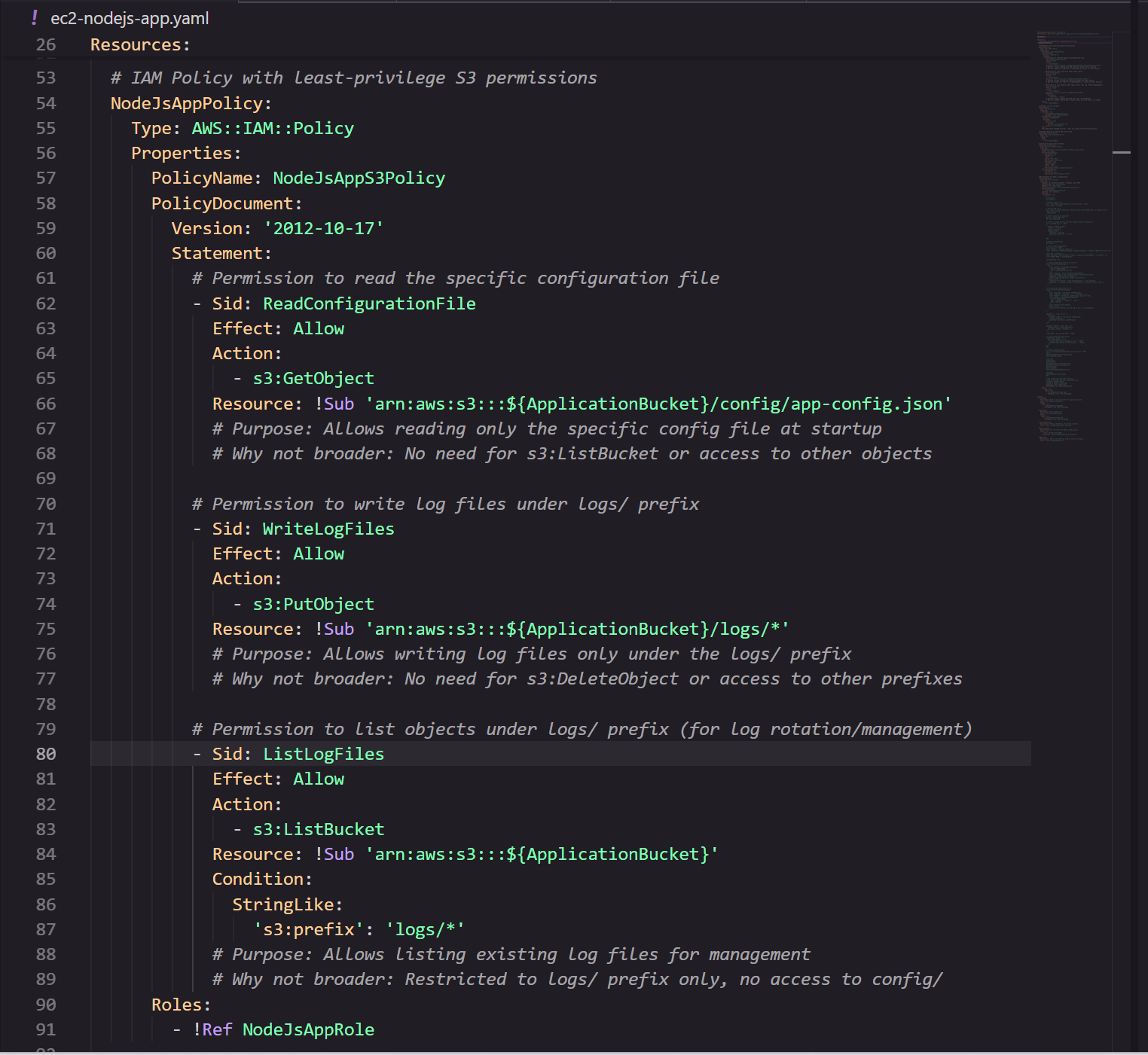
Least‑Privilege S3 Access Policy
Kiro created the most restrictive policy possible, allowing the EC2 instance to:
- Read the configuration file
arn:aws:s3:::${ApplicationBucket}/config/app-config.json - Write log files under the
logs/prefix
arn:aws:s3:::${ApplicationBucket}/logs/* - List objects under the
logs/prefix
arn:aws:s3:::${ApplicationBucket}/logs/*
IAM Role & Instance Profile
Kiro created an IAM Role named NodeJsAppRole.
- Assume policy: Only EC2 instances can assume this role.
- Attachment: The role is linked to an Instance Profile, allowing the EC2 instance to use the permissions granted by the role.
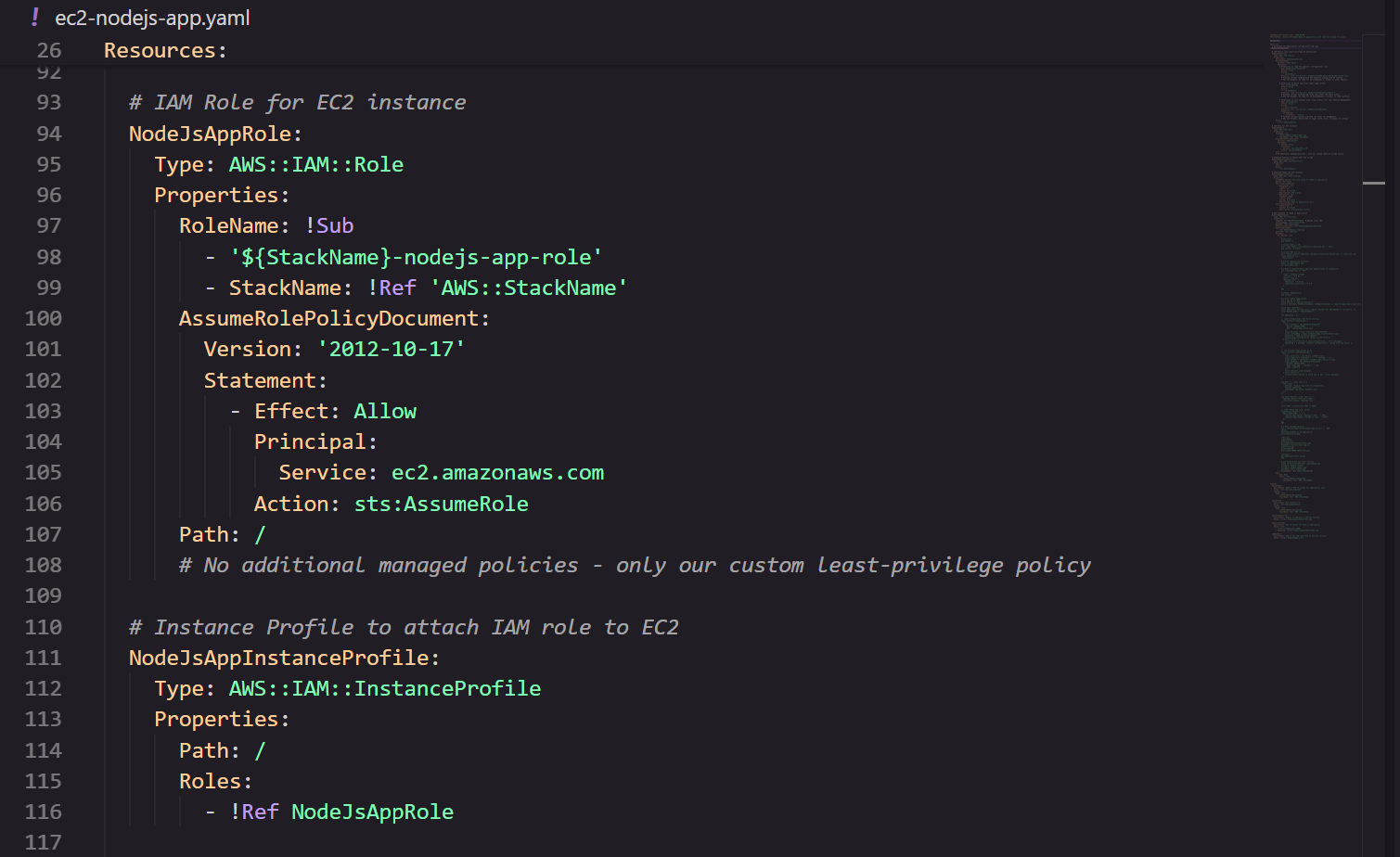
This setup enforces a least‑privilege architecture for the stack.
Important Notes from My Experience with Kiro
| # | Note |
|---|---|
| 1 | Kiro writes a lot of code quickly. Be patient and read the generated text – it’s worth it! |
| 2 | A DEPLOYMENT.md file is created with placeholder values. Locate and replace them before running deployment commands. |
| 3 | Kiro may not know the correct AMI ID. Find the appropriate EC2 Image ID for your region before deployment. |
| 4 | When Kiro troubleshoots, it will suggest many commands. Read each command first before allowing it to run. |
| 5 | If Kiro gets stuck, it will ask whether to stop the current iteration and request more information. |
| 6 | Feel free to log into the AWS console, collect logs, and share them with Kiro – the more context, the better the assistance. |
Deployment Success
After debugging and fixing the code with Kiro’s help, the stack was finally created! 🎉
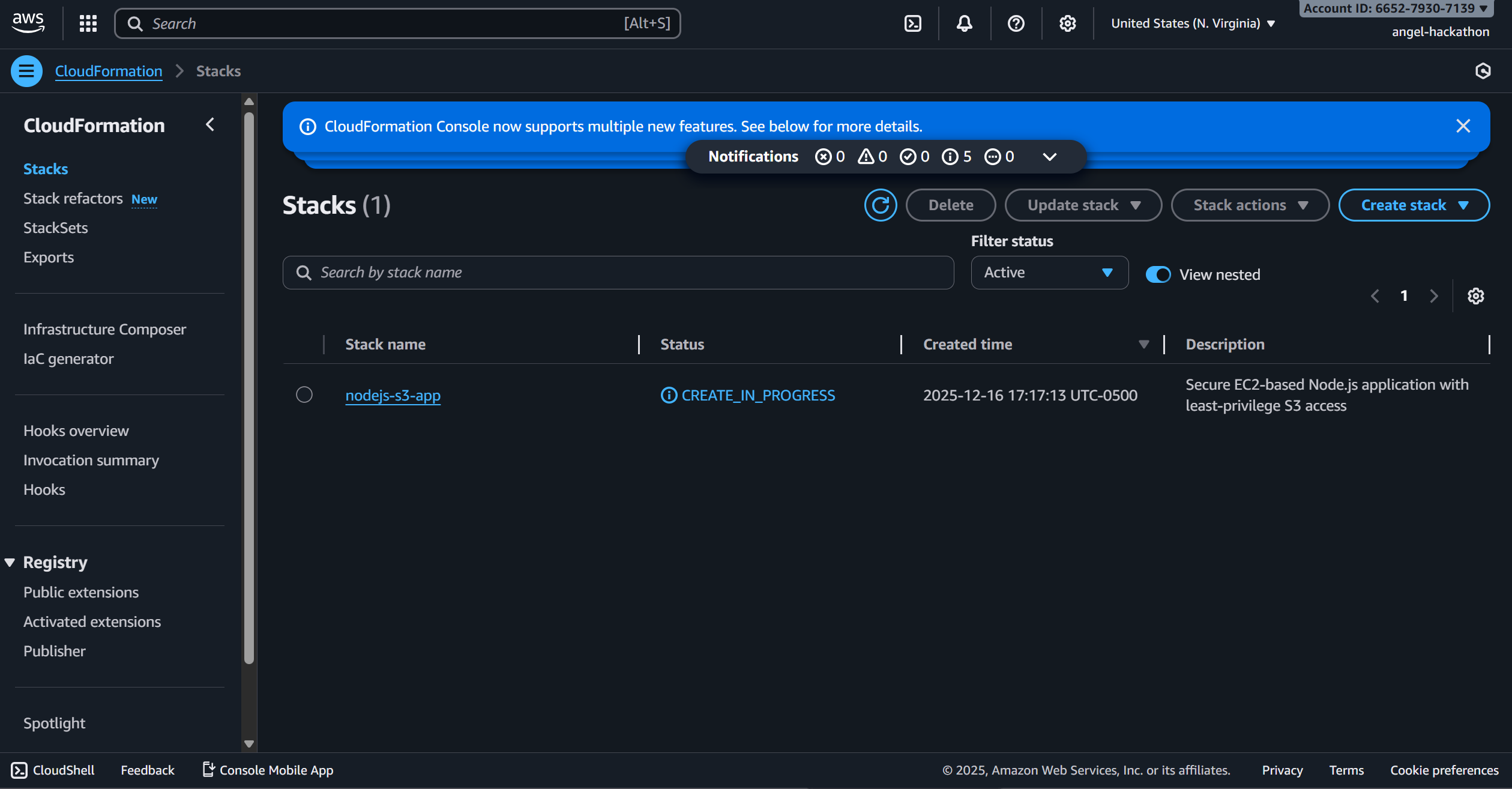
You can see the newly created CloudFormation resources in the screenshot above.
Testing the Deployment
-
Run a health‑check
curl http://<EC2_PUBLIC_IP>:3000/healthReplace
<EC2_PUBLIC_IP>with the public IP address of your EC2 instance.
The response should be a JSON payload:{"status":"healthy"}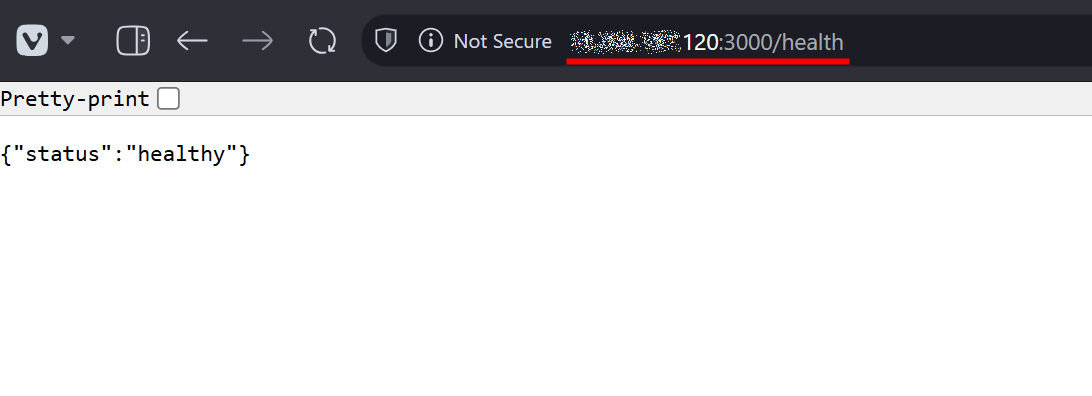
-
Verify the log file in S3
The EC2 instance writes a log entry to the S3 bucket using the attached IAM role.
You should see a new object under thelogs/prefix with a name similar toapp-2023-09-15.log.
-
Inspect the log content
Download the log file to view the timestamp of the health check:

The file confirms that the EC2 instance successfully performed the health check and recorded the result.
Summary
- A minimal S3 policy grants the EC2 instance only the permissions it truly needs.
- An IAM role (
NodeJsAppRole) limited to the EC2 assume‑action secures the instance. - Following the deployment steps and testing the health endpoint validates the entire stack.
Feel free to reuse this pattern for other services that require strict least‑privilege access!
Architecture Overview
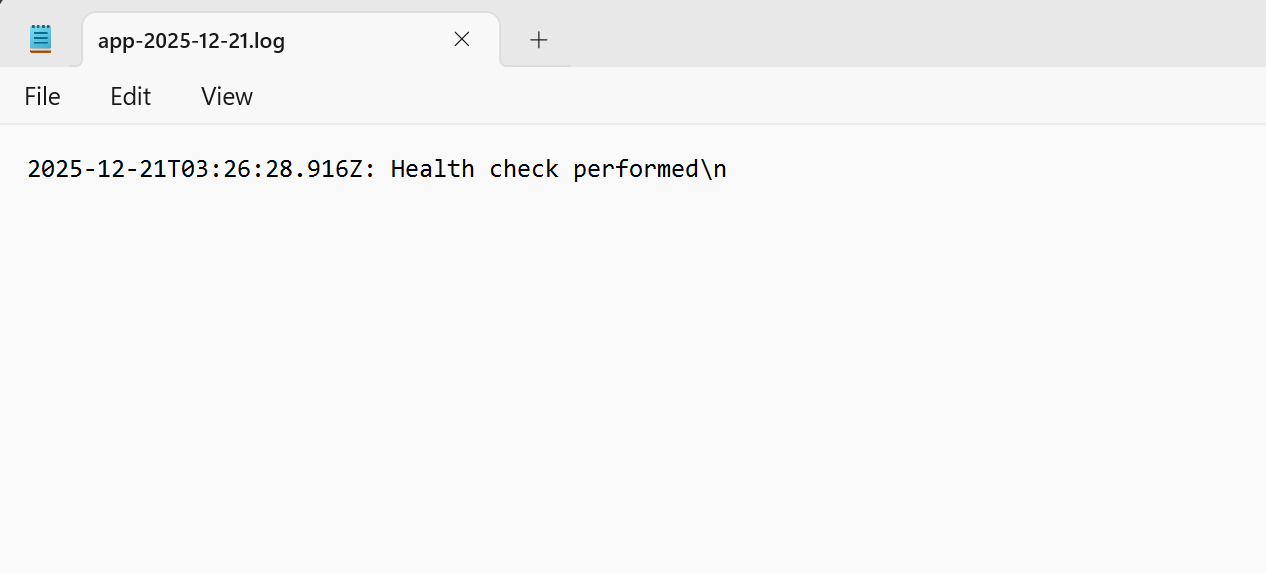
Figure 1 – High‑level architecture of the EC2 ↔ S3 interaction.
As you saw throughout the process, Kiro can spin up a new stack with a simple EC2 instance that interacts with S3 while enforcing least‑privilege architectures in a user‑friendly way.
Cost Note
Note: This experiment consumed only 11.22 credits out of the 500 bonus credits granted to new Kiro users.
Kiro Dashboard

Figure 2 – Kiro dashboard showing the deployed resources.
Closing Thoughts
I hope this article was interesting and useful, and that it inspires you to build your own project or stack with the help of our new friend, Kiro! 🤓
Thanks for reading, and stay tuned for upcoming articles 📚
Bye! 👋