
Automated AWS Receipt Processing System using Textract, Lambda & MySQL
Published: (December 19, 2025 at 04:47 AM EST)
2 min read
Source: Dev.to
Source: Dev.to
Introduction
In this blog I’ll walk you through how I built an end‑to‑end automated receipt processing system on AWS using:
- Amazon S3
- AWS Lambda
- Amazon Textract (AnalyzeExpense)
- Amazon RDS (MySQL)
- Lambda Layers (pymysql)
Architecture Overview
User uploads receipt (PDF / JPG)
        ↓
Amazon S3 (ObjectCreated event)
        ↓
AWS Lambda
        ↓
Amazon Textract (AnalyzeExpense)
        ↓
Amazon RDS (MySQL)
Step 1 – Create the MySQL Database (RDS)
CREATE DATABASE receipt_db;

USE receipt_db;

CREATE TABLE ride_receipts (
    receipt_id INT AUTO_INCREMENT PRIMARY KEY,
    customer_name VARCHAR(100),
    ride_id VARCHAR(50),
    driver_name VARCHAR(100),
    vehicle_number VARCHAR(20),
    mode_of_vehicle VARCHAR(50),
    selected_price DECIMAL(10,2),
    time_of_ride TIMESTAMP DEFAULT CURRENT_TIMESTAMP
);
Step 2 – Create a Lambda Layer for pymysql
mkdir pymysql_layer
cd pymysql_layer
mkdir python
pip install pymysql -t python/
zip -r pymysql_layer.zip python
Upload the layer in AWS
- Go to Lambda → Layers → Create layer
- Runtime: Python 3.10
- Upload
pymysql_layer.zip
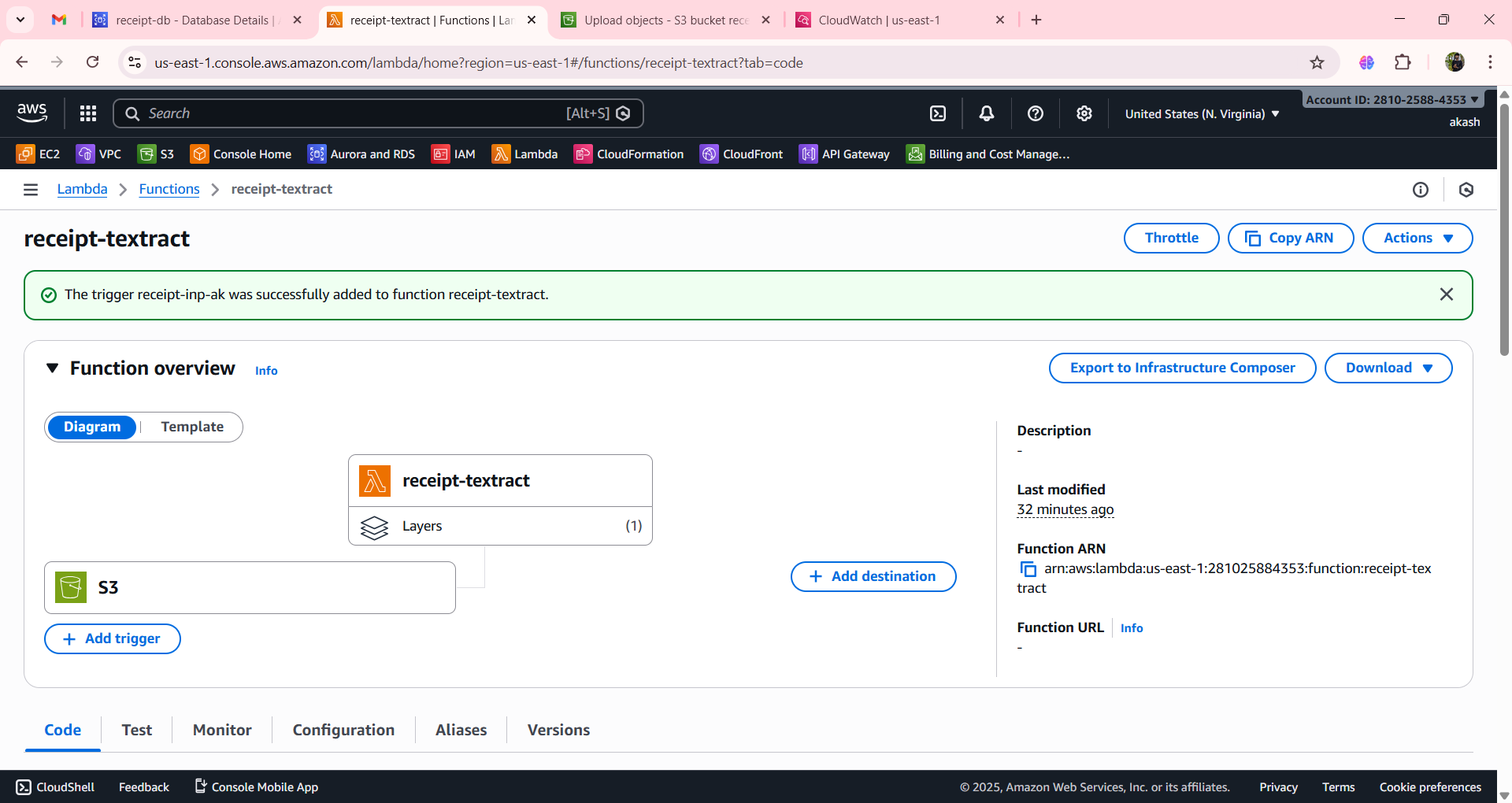
Step 3 – Create the Lambda Function
- Runtime: Python 3.10
- Attach the pymysql layer
- Add IAM permissions:
AmazonTextractFullAccessAmazonS3ReadOnlyAccessCloudWatchLogsFullAccess
Step 4 – Lambda Function Code Overview
The function:
- Listens for a receipt upload event from Amazon S3.
- Reads the bucket name and object key.
- Sends the receipt to Amazon Textract for structured data extraction.
- Processes the extracted text to identify key receipt details.
- Stores the structured data into the MySQL database.
(Full source code can be found in the linked repository.)
Step 5 – Configure the S3 Trigger
- Open Lambda → Configuration → Triggers.
- Add an S3 trigger:
- Event type: ObjectCreated (PUT)
- Bucket: receipt‑inp‑ak
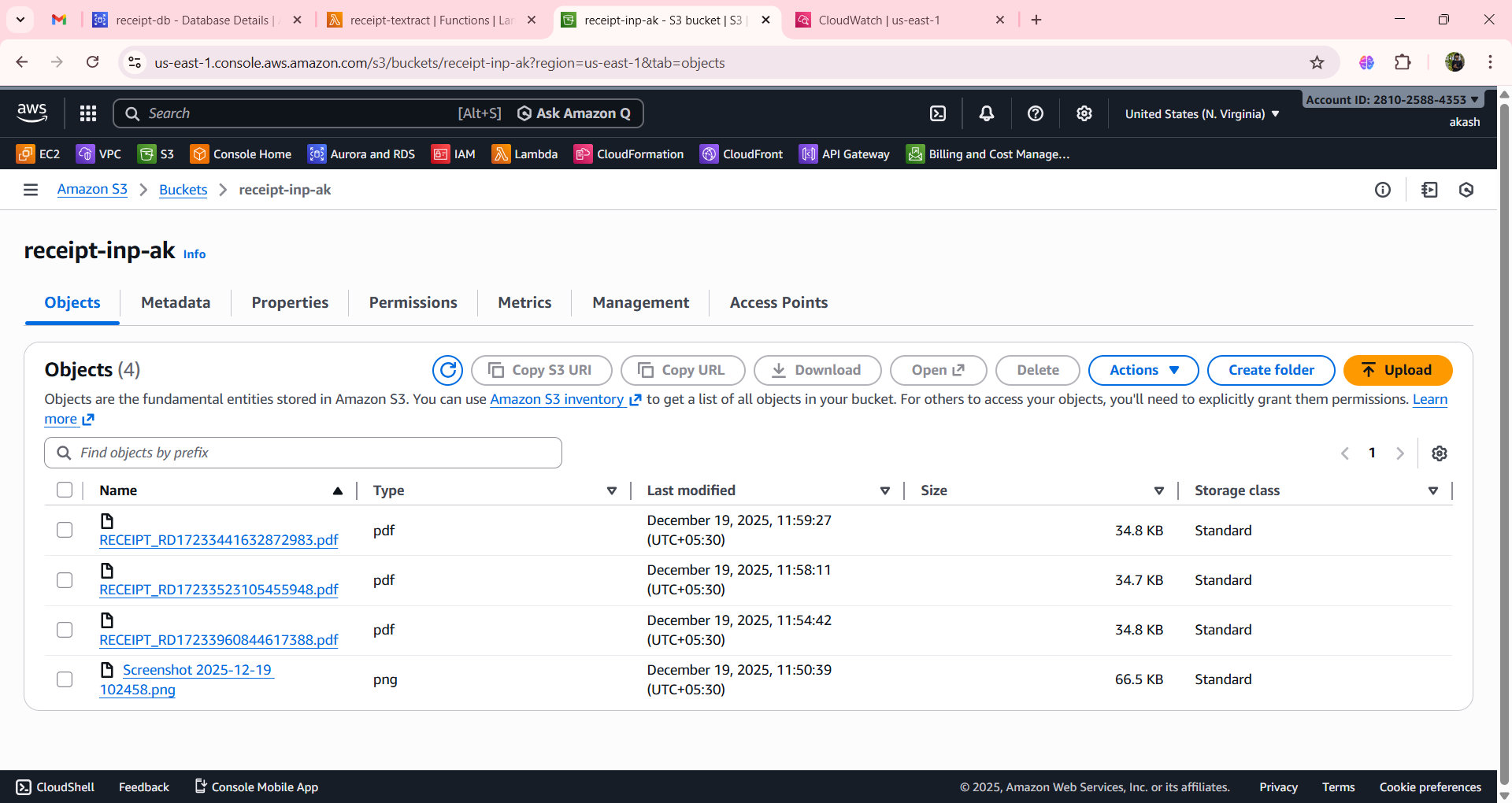
Step 6 – Upload a Receipt to S3
Upload a clean file such as receipt1.jpg or receipt.pdf to the bucket.
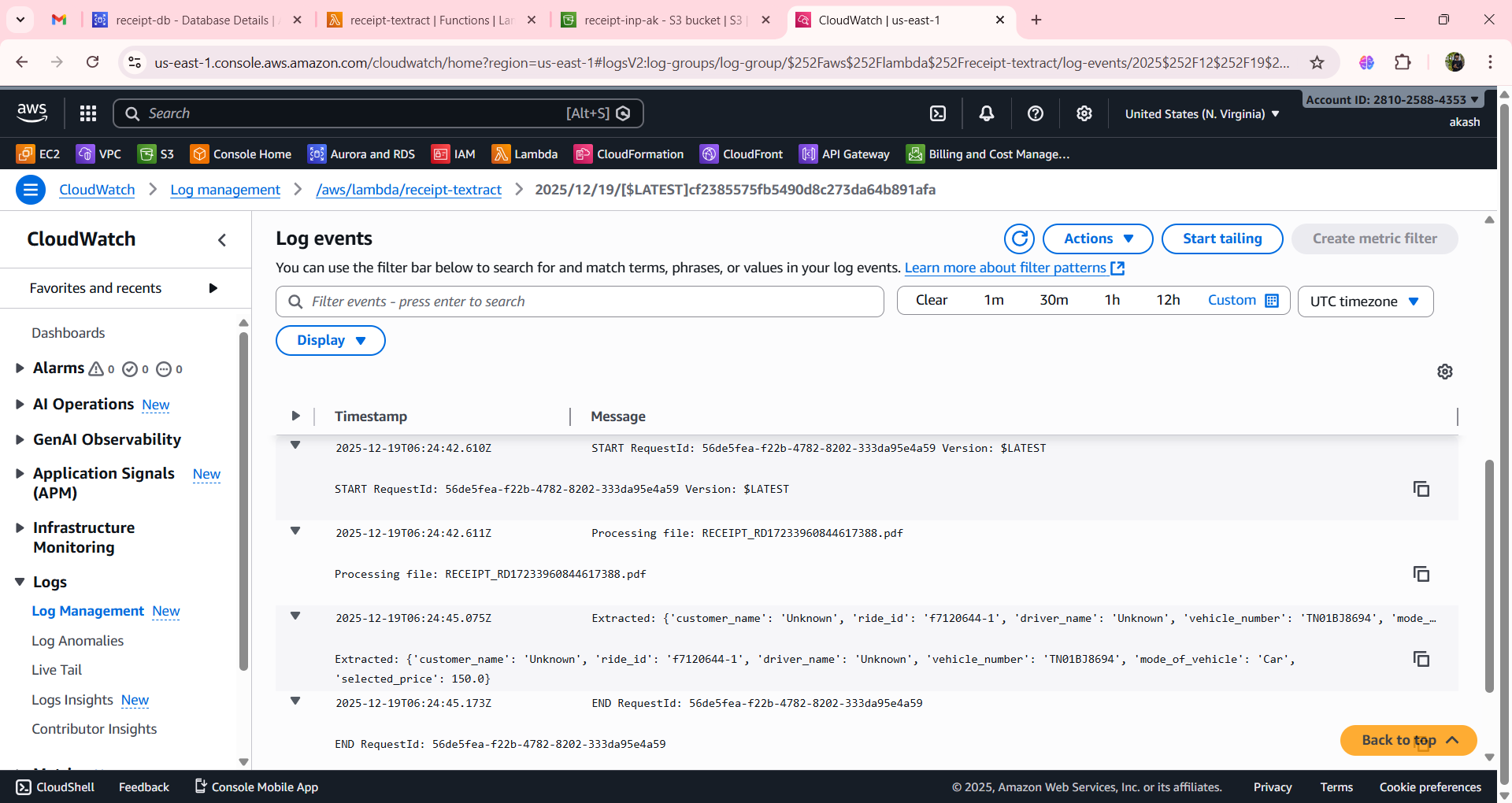
Step 7 – Debug Using CloudWatch
Check logs at:
CloudWatch → /aws/lambda/receipt-textractSuccessful log example
Processing file: receipt.pdf
Extracted: {
 'vehicle_number': 'TN01B3694',
 'mode_of_vehicle': 'Car',
 'selected_price': 150.0
}
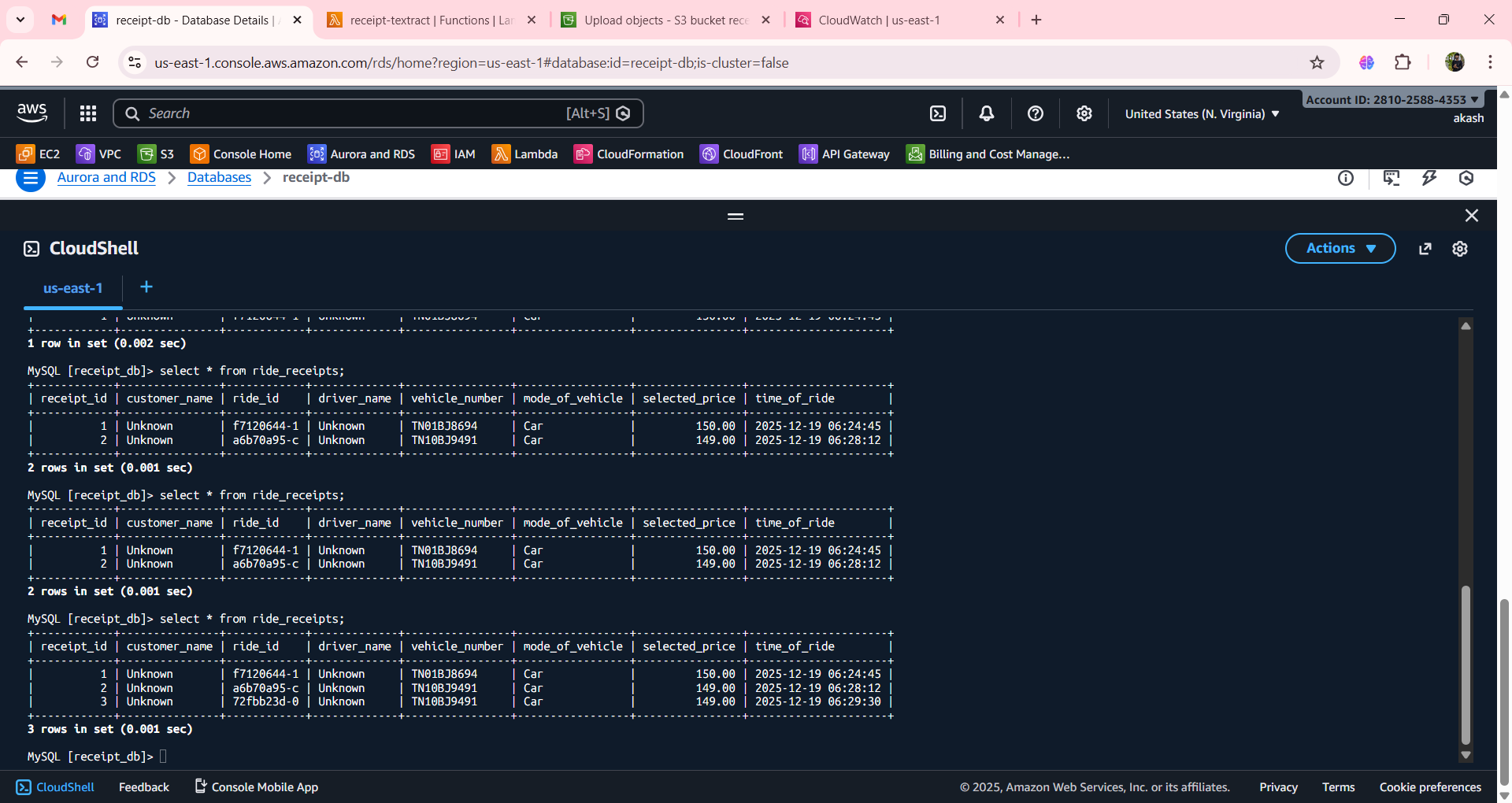
Step 8 – Verify Data in MySQL
Run a SELECT query to confirm the records were inserted.
Note: Remember to delete the resources you created after testing. Stay tuned for more blogs and deployments.