
Automate Your Terminal Setup with PowerShell: Installing Starship Prompt
Source: Dev.to
Introduction
PowerShell scripts (.ps1 files) are powerful automation tools for Windows users. In this article, I share a practical script that installs and configures Starship, a minimal, blazing‑fast, and customizable prompt for any shell.
What is a .ps1 File?
A .ps1 file is a PowerShell script—a text file containing a series of PowerShell commands that execute sequentially. Think of it as a batch file on steroids.
- Extension:
.ps1stands for PowerShell version 1 (though it works with all versions) - Execution: Run with
.\script.ps1in PowerShell - Security: Windows blocks scripts by default—you need to set an execution policy.
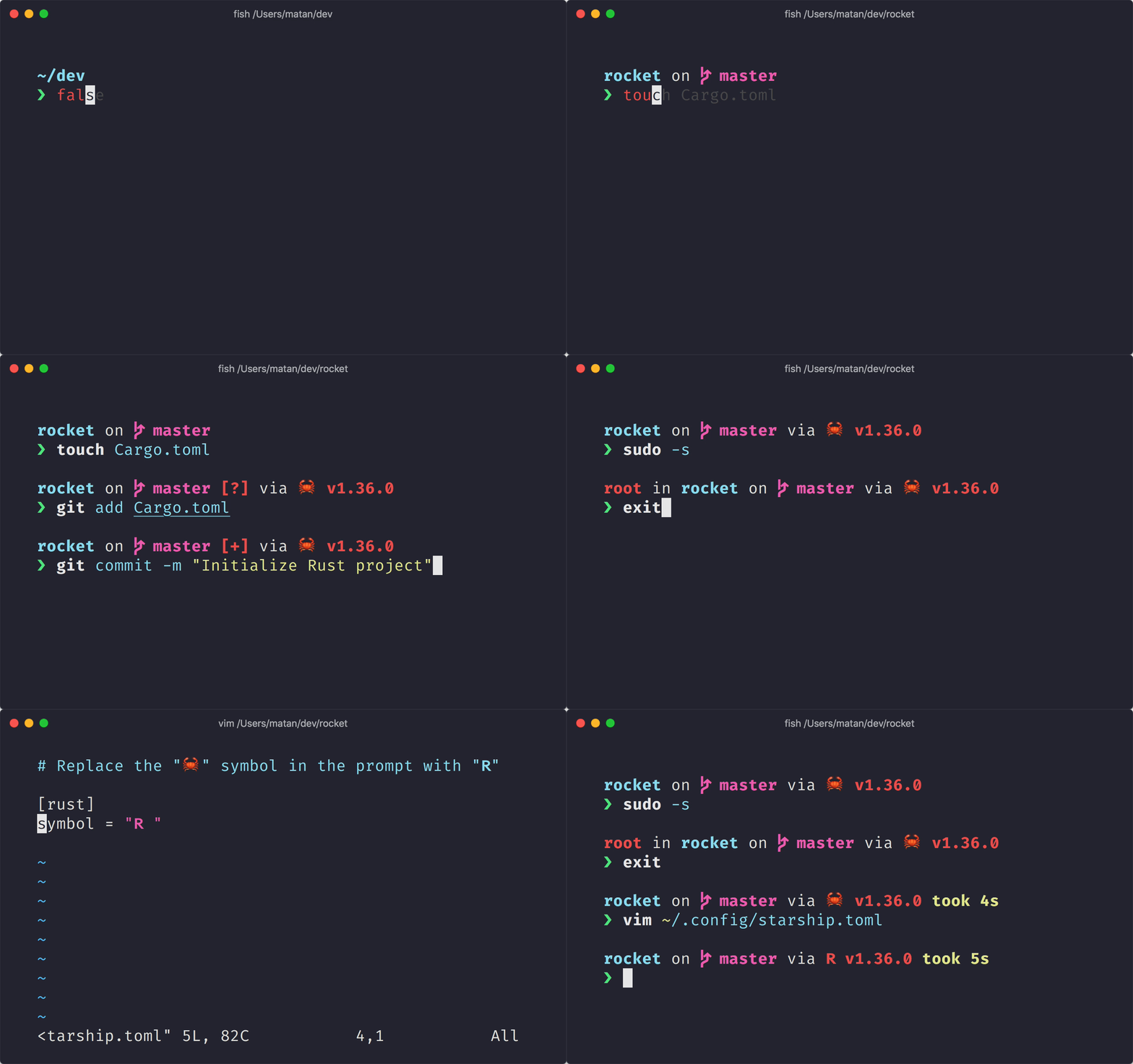
What is Starship?
Starship is a cross‑shell prompt written in Rust that:
- Works with PowerShell, Bash, Zsh, Fish, and more
- Shows git status, language versions, and system info
- Is incredibly fast and highly customizable
- Uses Nerd Fonts for beautiful icons
The Installation Script
Here is a complete PowerShell script to install and configure Starship:
# Install Starship Prompt
# Run this script in PowerShell: .\install-starship.ps1

Write-Host "Installing Starship..." -ForegroundColor Cyan

# Install Starship via winget
winget install --id Starship.Starship --accept-source-agreements --accept-package-agreements

# Set execution policy to allow scripts
Write-Host "Setting execution policy..." -ForegroundColor Cyan
Set-ExecutionPolicy -ExecutionPolicy RemoteSigned -Scope CurrentUser -Force

# Create PowerShell profile if it does not exist
if (!(Test-Path -Path $PROFILE)) {
    New-Item -Path $PROFILE -ItemType File -Force | Out-Null
    Write-Host "Created PowerShell profile at $PROFILE" -ForegroundColor Green
}

# Add Starship init to profile if not already present
$profileContent = Get-Content -Path $PROFILE -Raw -ErrorAction SilentlyContinue
if ($profileContent -notmatch "starship init powershell") {
    Add-Content -Path $PROFILE -Value "`nInvoke-Expression (&starship init powershell)"
    Write-Host "Added Starship to PowerShell profile" -ForegroundColor Green
} else {
    Write-Host "Starship already configured in profile" -ForegroundColor Yellow
}

Write-Host "`nInstallation complete!" -ForegroundColor Green
Write-Host "Restart PowerShell to see Starship in action." -ForegroundColor Cyan
Script Breakdown
1. Installing with Winget
winget install --id Starship.Starship --accept-source-agreements --accept-package-agreementswinget is the Windows Package Manager—the official way to install software on Windows 10/11. The flags auto‑accept prompts for automation.
2. Execution Policy
Set-ExecutionPolicy -ExecutionPolicy RemoteSigned -Scope CurrentUser -ForceWindows blocks PowerShell scripts by default. RemoteSigned allows local scripts while requiring signatures for downloaded scripts. The CurrentUser scope means no admin rights are needed.
3. PowerShell Profile
if (!(Test-Path -Path $PROFILE)) {
    New-Item -Path $PROFILE -ItemType File -Force | Out-Null
}
$PROFILE is an automatic variable pointing to your PowerShell profile script (runs on every PowerShell start). This block creates the file if it’s missing.
4. Idempotent Configuration
if ($profileContent -notmatch "starship init powershell") {
    Add-Content -Path $PROFILE -Value "`nInvoke-Expression (&starship init powershell)"
}
The script checks whether Starship is already configured before adding the initialization line, making the script idempotent—safe to run multiple times.
How to Use
-
Save the script as
install-starship.ps1. -
Open PowerShell and navigate to the script’s location.
-
Run the script:
.\install-starship.ps1 -
Restart PowerShell to see Starship in action.
Bonus: Install a Nerd Font
For the best experience, install a Nerd Font:
winget install JetBrains.JetBrainsMono.NerdFontThen set it as your terminal font in Windows Terminal settings.
Conclusion
PowerShell scripts are excellent for automating repetitive tasks. This Starship installation script demonstrates key concepts:
- Using
wingetfor software installation - Managing execution policies
- Working with PowerShell profiles
- Writing idempotent scripts
Feel free to use and modify this script for your own terminal setup!
Happy coding!