
Access AWS RDS without Password - use IAM
Source: Dev.to
Backstory
When setting up or debugging a database we usually need to log in with a password.
In our case the database authentication was configured to use an AWS Secrets Manager secret, and we didn’t have access to it.
If you ever find yourself in a similar situation—or if you’re a DevOps engineer who prefers not to share passwords directly with developers—you can use IAM‑based authentication for Amazon RDS. Below is a step‑by‑step guide.
Step 1: Create an RDS DB
-
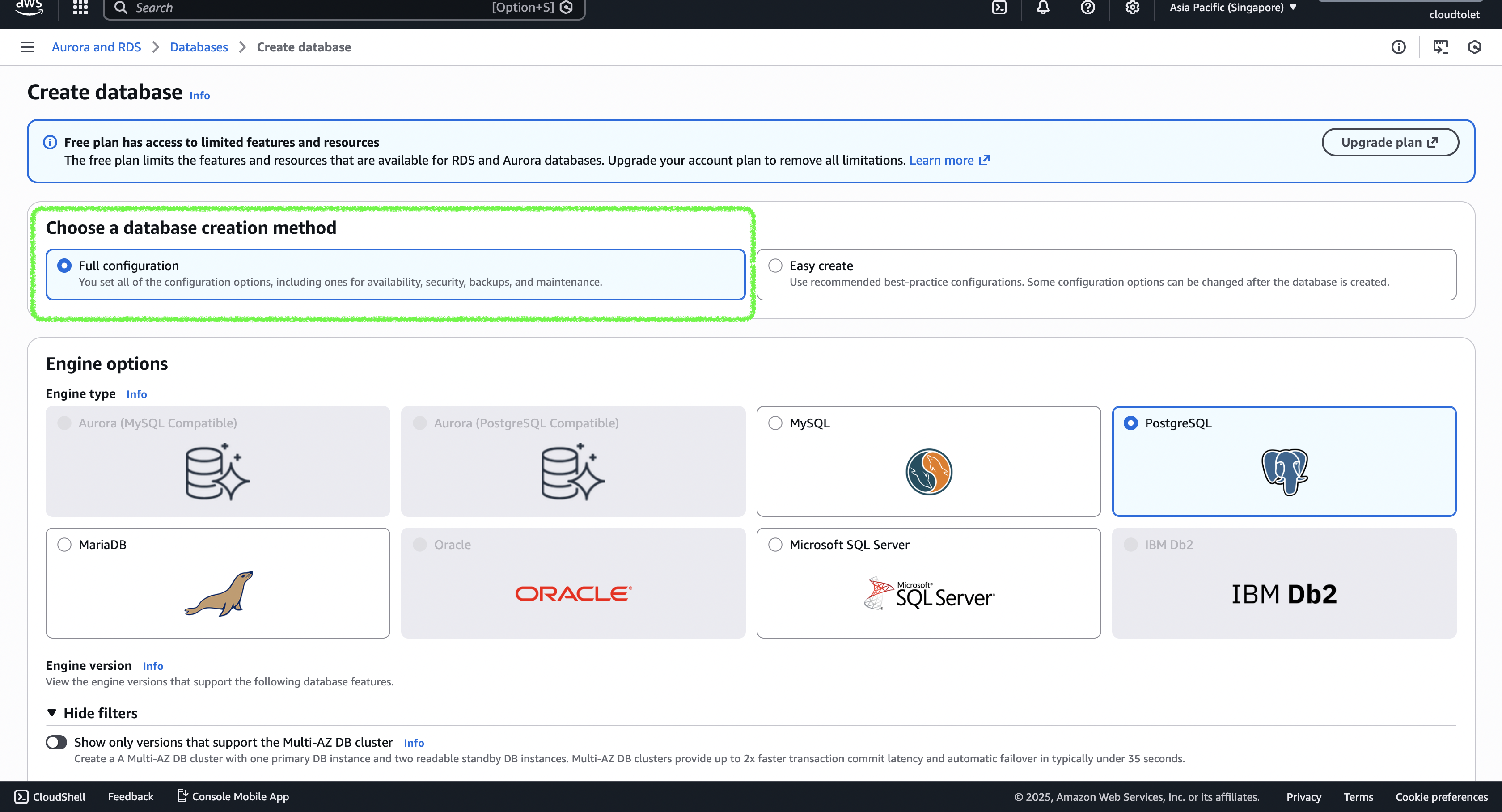
Choose a creation method
- In the RDS console, under “Choose a database creation method” select Full configuration.
- I’ll create a PostgreSQL instance, but you can pick any engine that supports IAM authentication.
- See the list of supported regions and engines here:
-
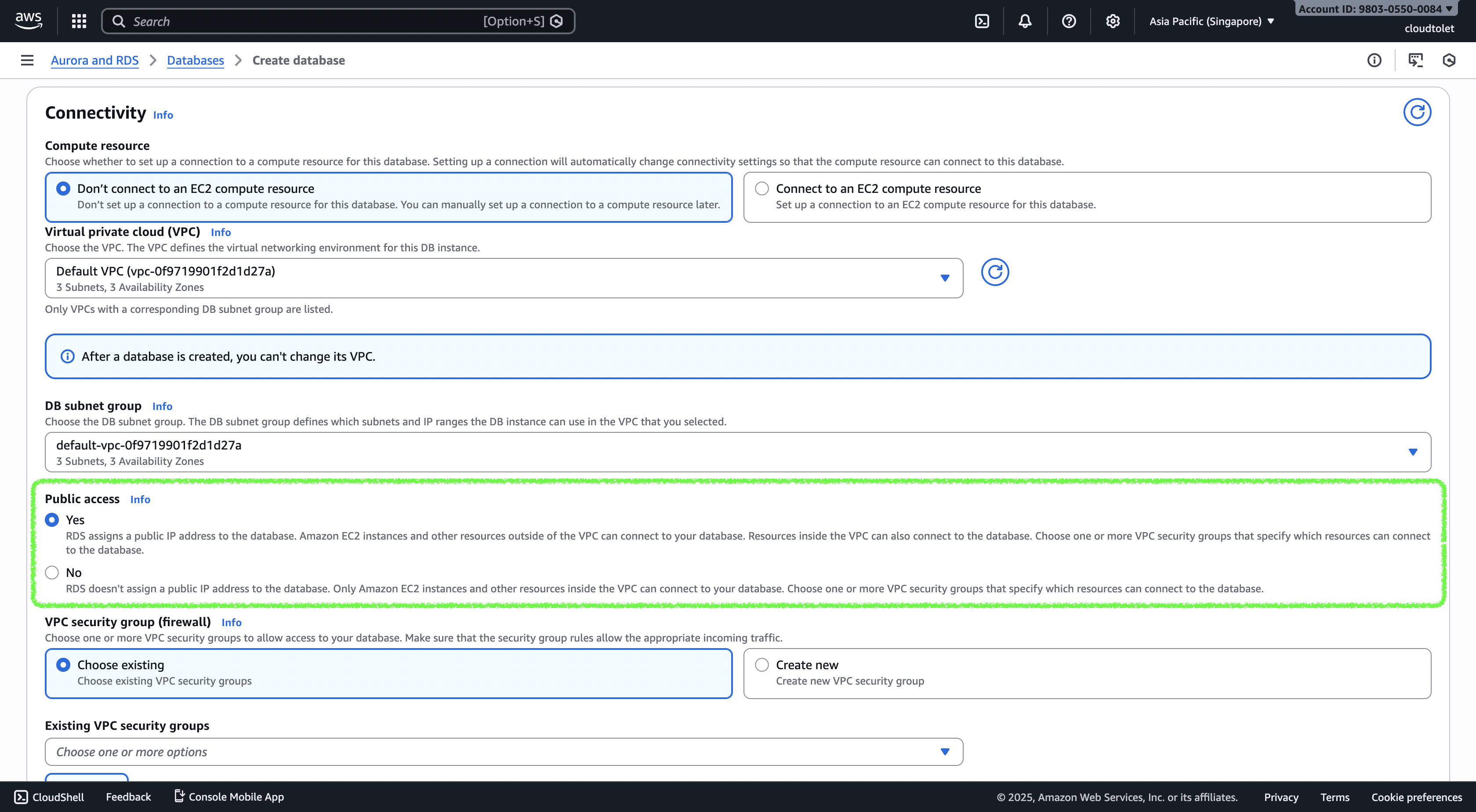
Configure connectivity
- Set Public access to Yes because we’ll connect from a local machine.
- (If you’ll only access the DB from an EC2 instance in the same VPC, you can keep it private.)
-
Create a security group (firewall rule)
- Go to EC2 → Security Groups → Create security group.
- Add an inbound rule that allows TCP 5432 (PostgreSQL) from the IP ranges you need (e.g.,
0.0.0.0/0for “anywhere”).
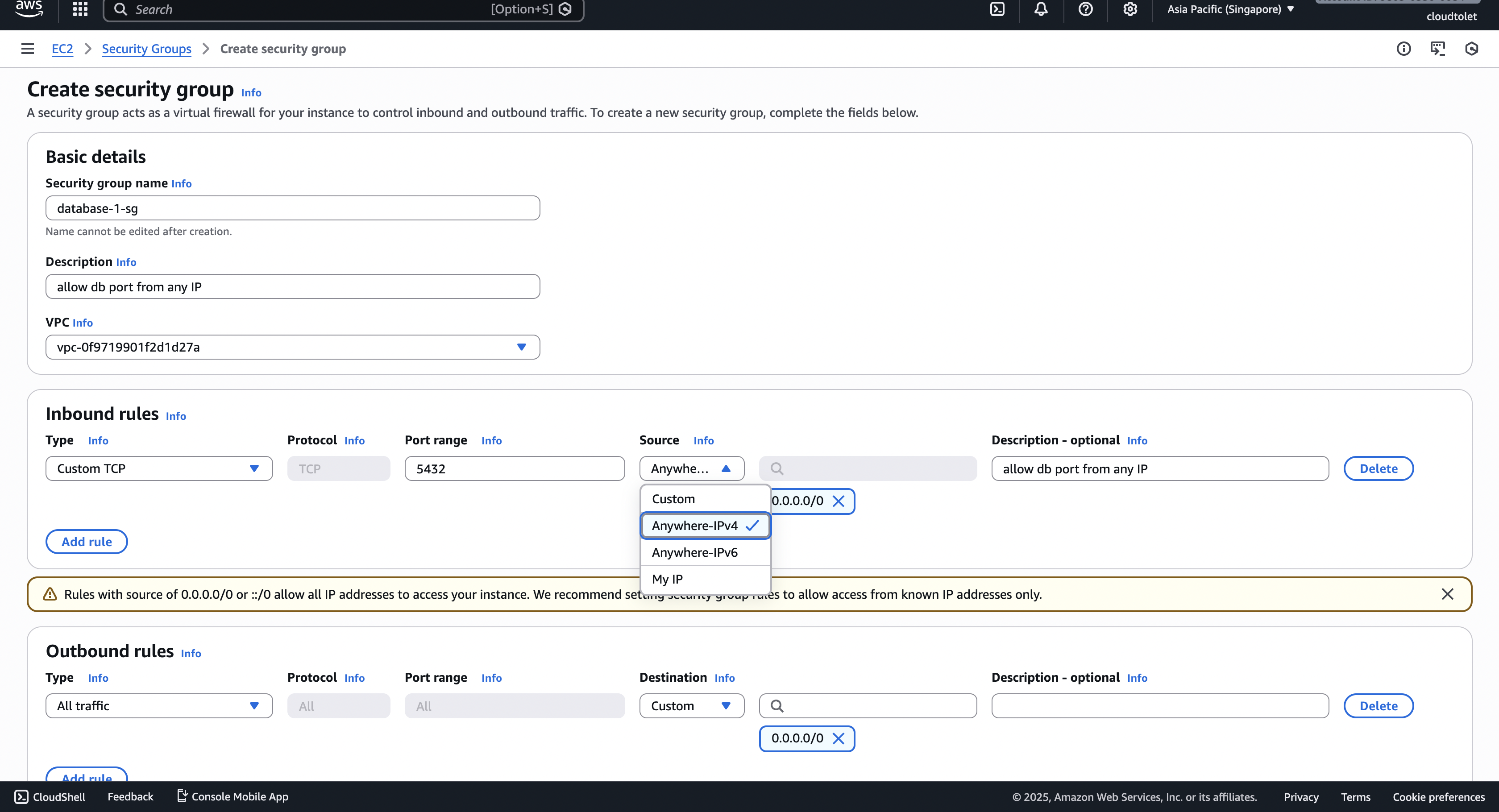
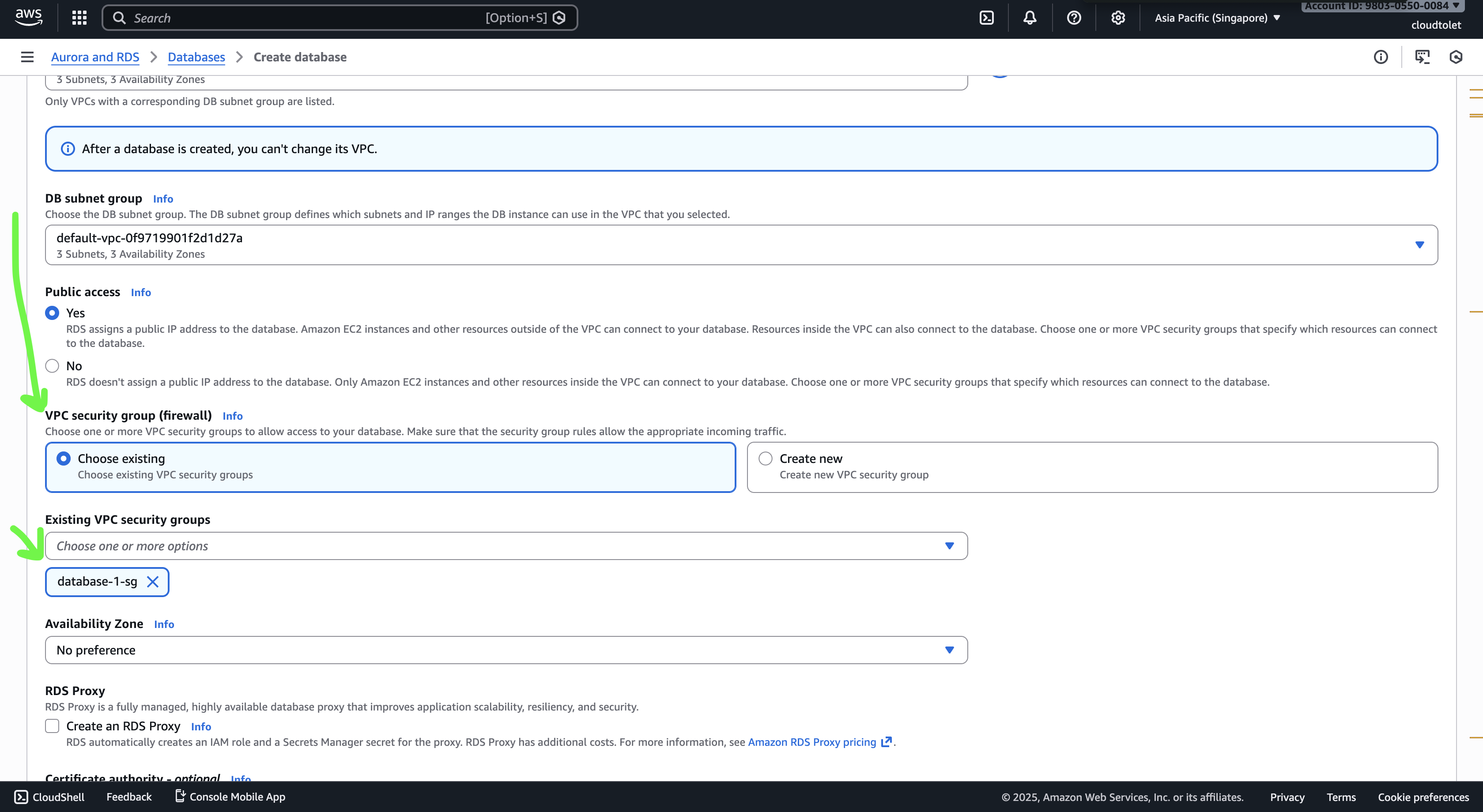
- Attach this security group to the RDS instance in the Connectivity section.
-
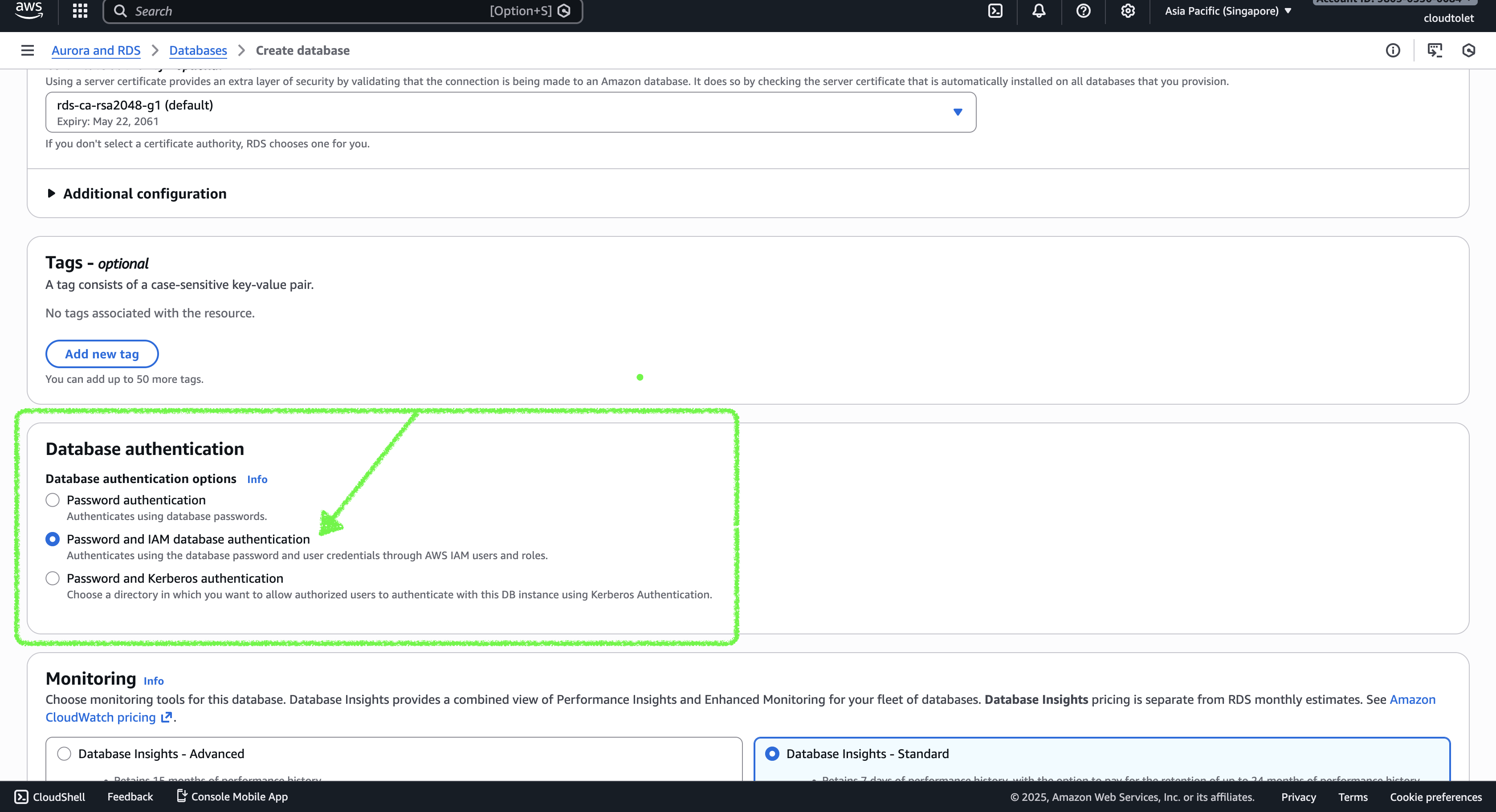
Enable IAM authentication
- Scroll to the Database authentication section and select Password and IAM database authentication.
-
Create the database
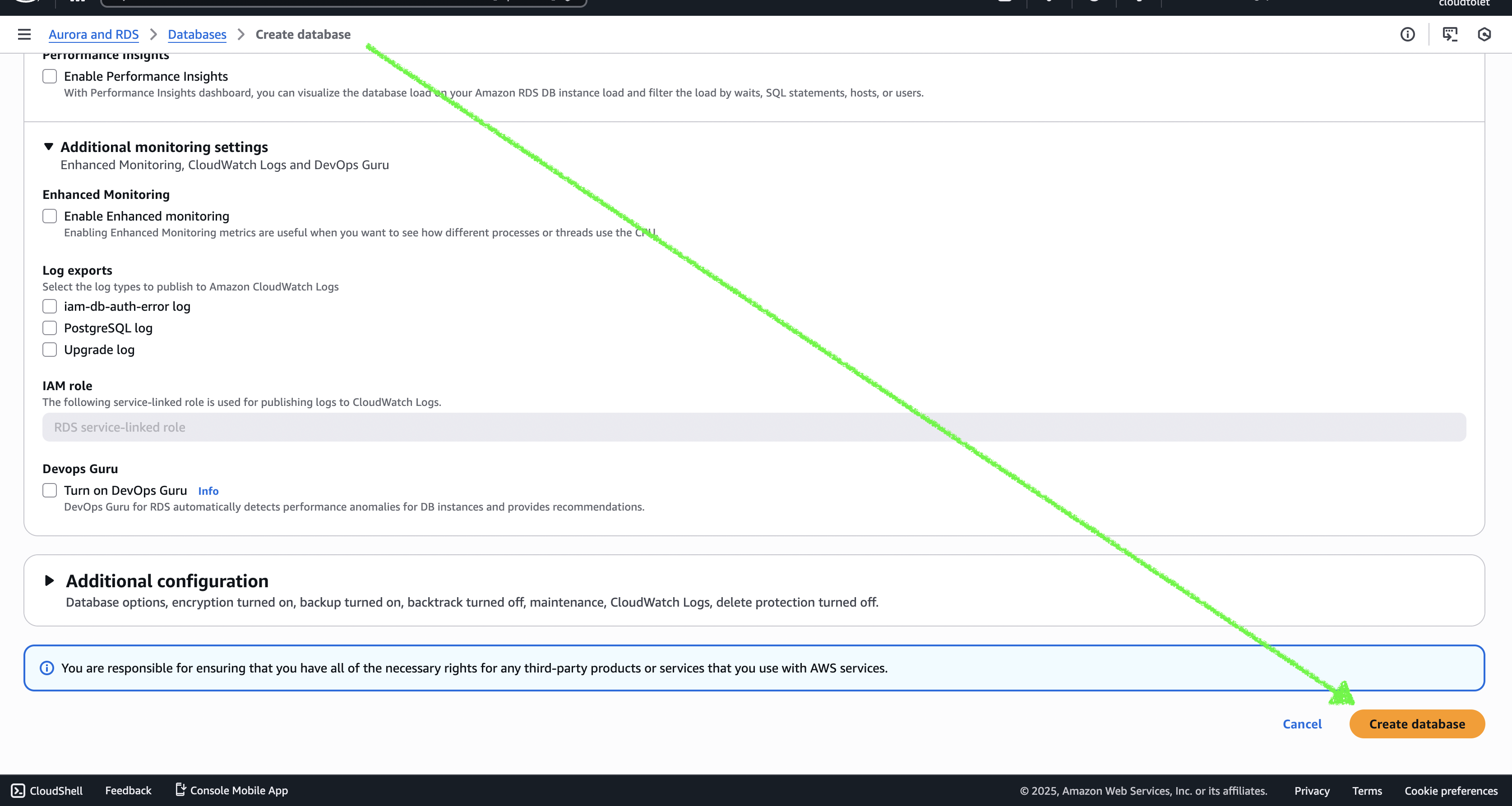
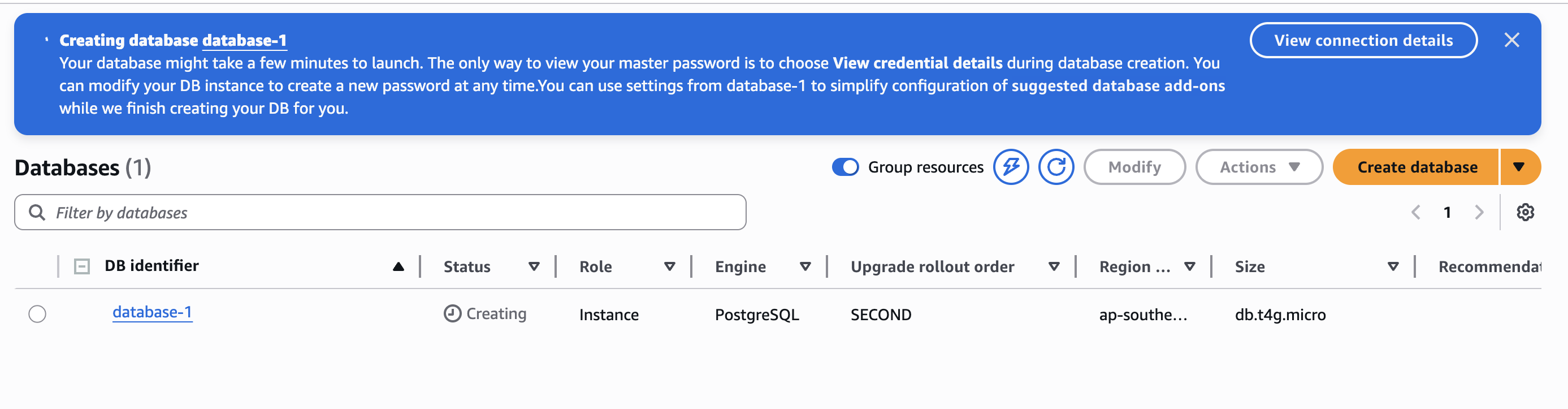
- Wait a few minutes for the instance to become available.
Step 2: Set Up IAM Role/Policy
-
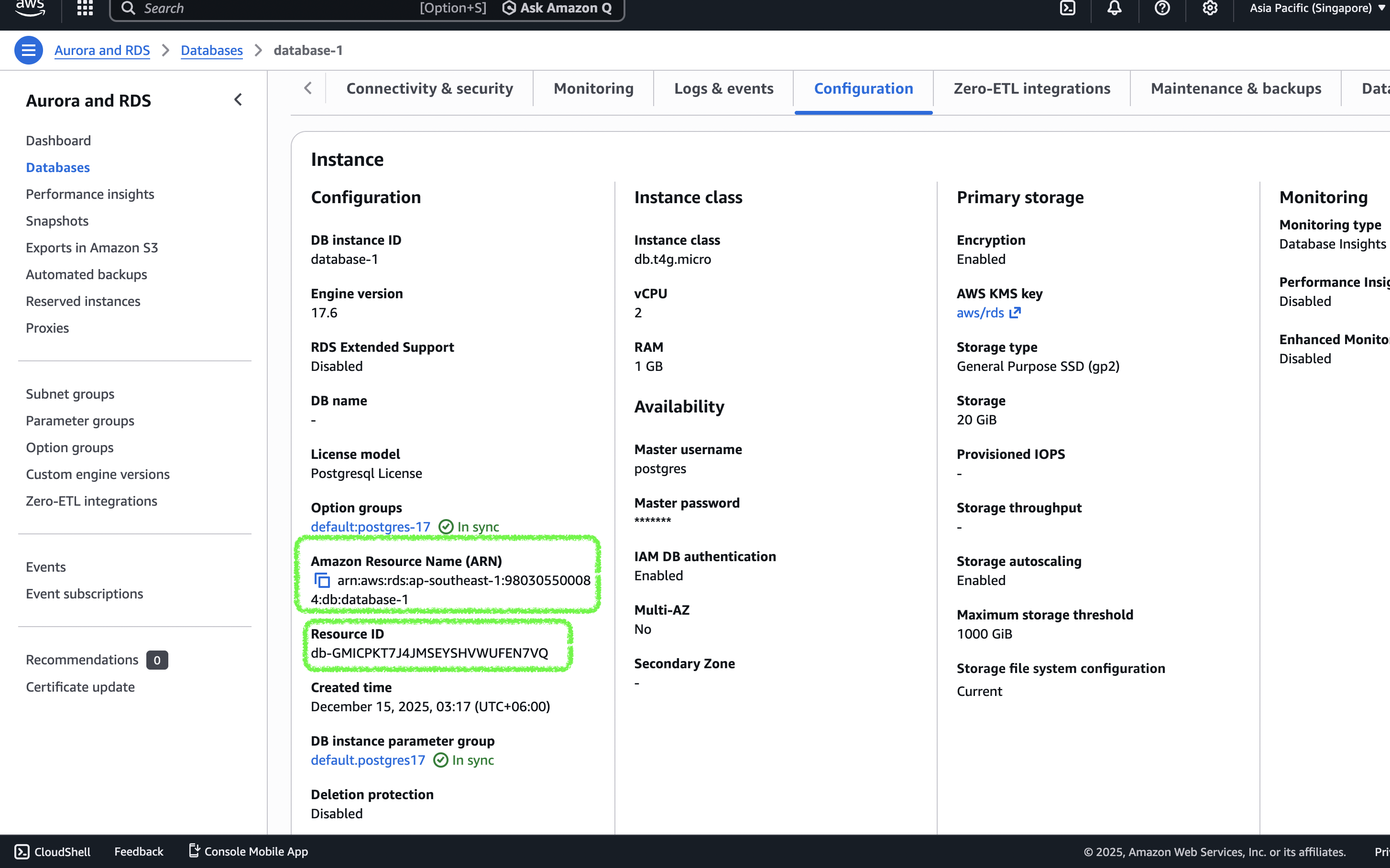
Get the DB ARN and resource ID
- Open the RDS instance details and go to the Configuration tab.
- Note the ARN and resource ID (they look like
arn:aws:rds-db:::dbuser:/).
-
Create an IAM policy for developers
- In the IAM console, choose Policies → Create policy → JSON and paste the following (replace the placeholders with your own values):
{ "Version": "2012-10-17", "Statement": [ { "Effect": "Allow", "Action": [ "rds-db:connect" ], "Resource": [ "arn:aws:rds-db:::dbuser:/" ] } ] }- Important:
- “ – e.g.,
us-east-1 - “ – your AWS account number
- “ – the DB resource identifier shown in the RDS console
- “ – the database user you want the IAM principal to connect as (e.g.,
postgres)
- “ – e.g.,

-
Attach the policy
- Attach the newly created policy to the IAM users (or groups/roles) that need database access.
-
Enable IAM authentication for the DB user (optional but recommended)
- Connect to the DB using a password‑based admin account and run:
ALTER USER <username> WITH IAM;- This tells PostgreSQL that the specified user can authenticate via IAM.
-
Connect to the database using IAM
- Install the AWS CLI (if not already installed) and configure it with the IAM user’s credentials.
- Generate an authentication token:
aws rds generate-db-auth-token \ --hostname <db-endpoint> \ --port 5432 \ --username <db-username> \ --region <region>- Use the token as the password when connecting with
psql(or any PostgreSQL client). Example:
PGPASSWORD=$(aws rds generate-db-auth-token \ --hostname <db-endpoint> \ --port 5432 \ --username <db-username> \ --region <region>) \ psql "host=<db-endpoint> port=5432 dbname=<dbname> user=<db-username> sslmode=require"- The token is valid for 15 minutes, after which you must generate a new one.
Recap
- Create an RDS instance with IAM authentication enabled and a security group that allows your IP.
- Create an IAM policy granting
rds-db:connecton the specific DB ARN. - Attach the policy to the developers’ IAM users (or groups/roles).
- Generate a temporary auth token with the AWS CLI and use it as the password when connecting to the database.
With this setup, developers never need to know or store the actual database password—access is controlled entirely through IAM.
Step 2 – Create an IAM Policy for RDS IAM Authentication
{
  "Version": "2012-10-17",
  "Statement": [
    {
      "Effect": "Allow",
      "Action": [
        "rds-db:connect"
      ],
      "Resource": [
        "arn:aws:rds-db:ap-southeast-1:980305500084:dbuser:db-GMICPKT7J4JMSEYSHVWUFEN7VQ/postgres"
      ]
    }
  ]
}- In the IAM → Policies console click Create policy → JSON and paste the policy above.
- Click Next, give the policy a name (e.g.,
rds-iam-access), and create it.
Attach the Policy to a User
- Open IAM → Users, select the user that will access the database, and click Add permissions.
- Choose Attach existing policies directly, locate the
rds-iam-accesspolicy, and click Add permission.
If you need to grant access to other services (e.g., a bastion host or Kubernetes pods), create a role for the appropriate service instead.
Step 3 – Connect to the Database Using IAM
Prerequisite – Get the DB Endpoint
Navigate to the Connectivity & security tab of your RDS instance and copy the endpoint (e.g., database-1.cdkgmeaiqn6n.ap-southeast-1.rds.amazonaws.com).
Enable IAM Authentication for the DB User
First, connect with the master password (or via Secrets Manager) and grant the rds_iam role to the desired DB user:
psql "postgresql://postgres:YourMasterPasswordHere@database-1.cdkgmeaiqn6n.ap-southeast-1.rds.amazonaws.com:5432/postgres"

# Inside psql
GRANT rds_iam TO postgres;
Generate an IAM Authentication Token
# One‑off token
aws rds generate-db-auth-token \
  --hostname database-1.cdkgmeaiqn6n.ap-southeast-1.rds.amazonaws.com \
  --port 5432 \
  --region ap-southeast-1 \
  --username postgres

# Preferred: store the token in an environment variable
TOKEN=$(aws rds generate-db-auth-token \
  --hostname database-1.cdkgmeaiqn6n.ap-southeast-1.rds.amazonaws.com \
  --port 5432 \
  --region ap-southeast-1 \
  --username postgres)

# Verify (optional)
echo "$TOKEN"
The token is valid for 15 minutes.
Option 1 – Connect with psql
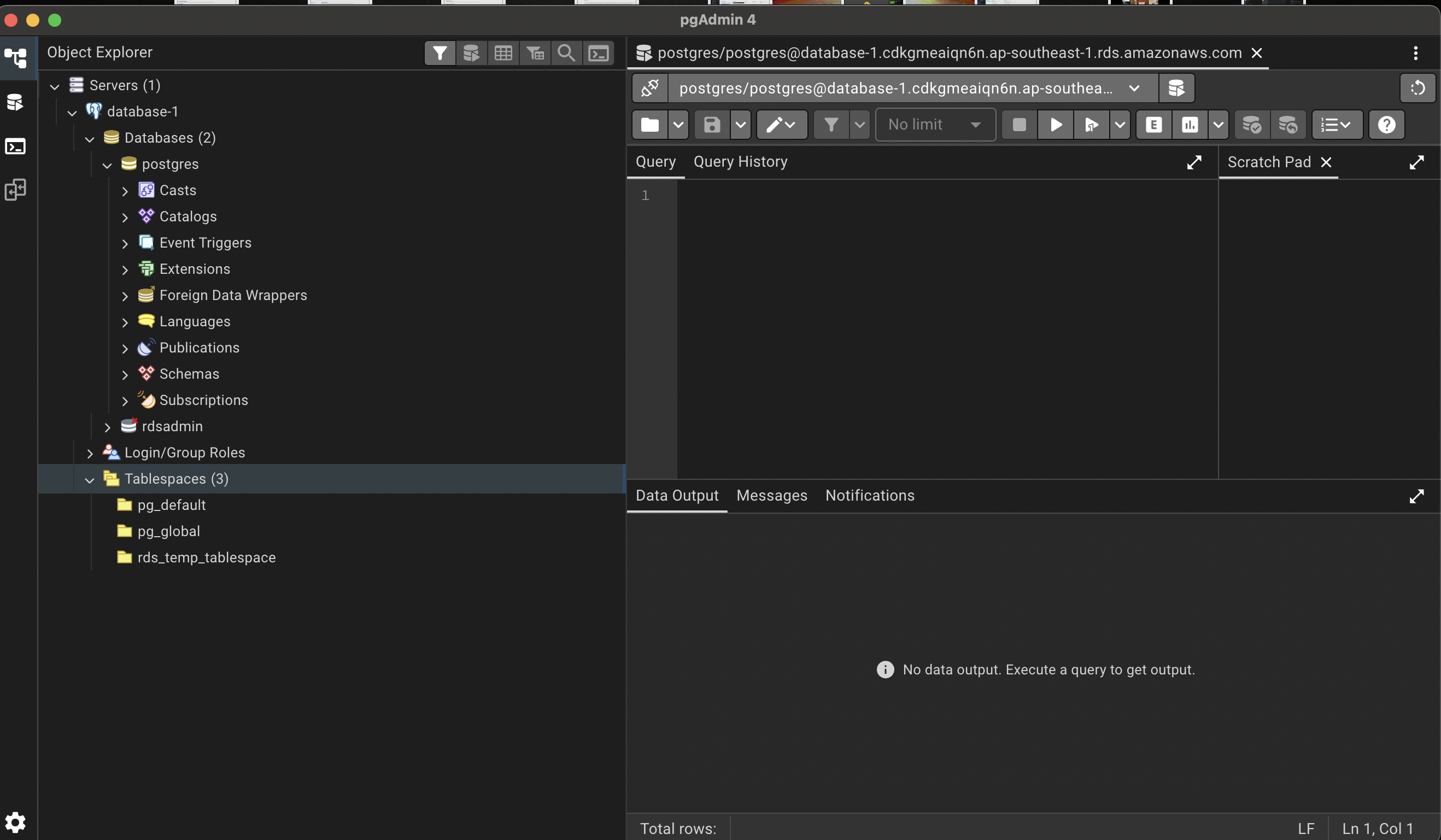
PGPASSWORD="$TOKEN" psql "postgresql://postgres@database-1.cdkgmeaiqn6n.ap-southeast-1.rds.amazonaws.com:5432/postgres?sslmode=require"You should now be connected to the database.
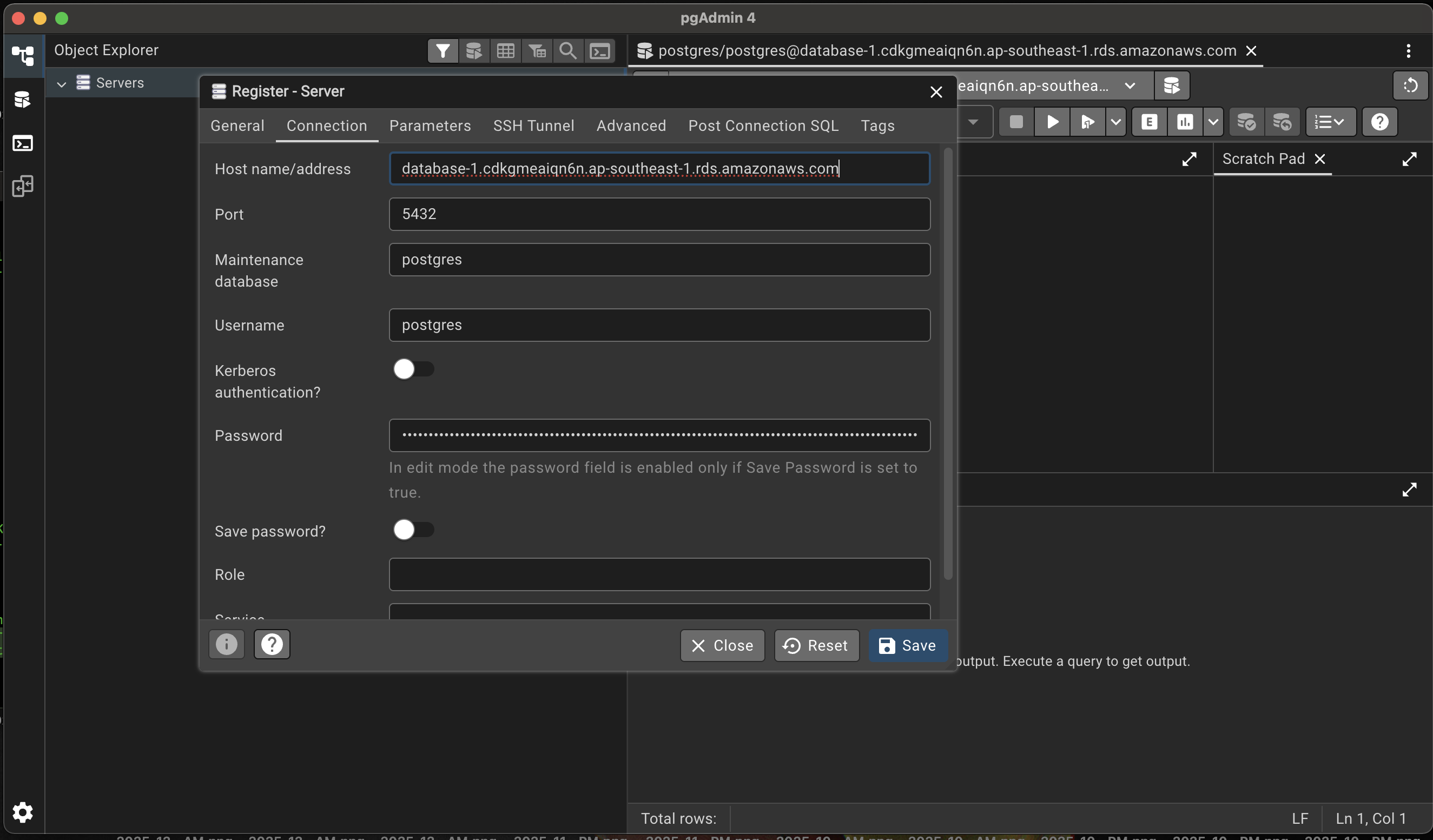
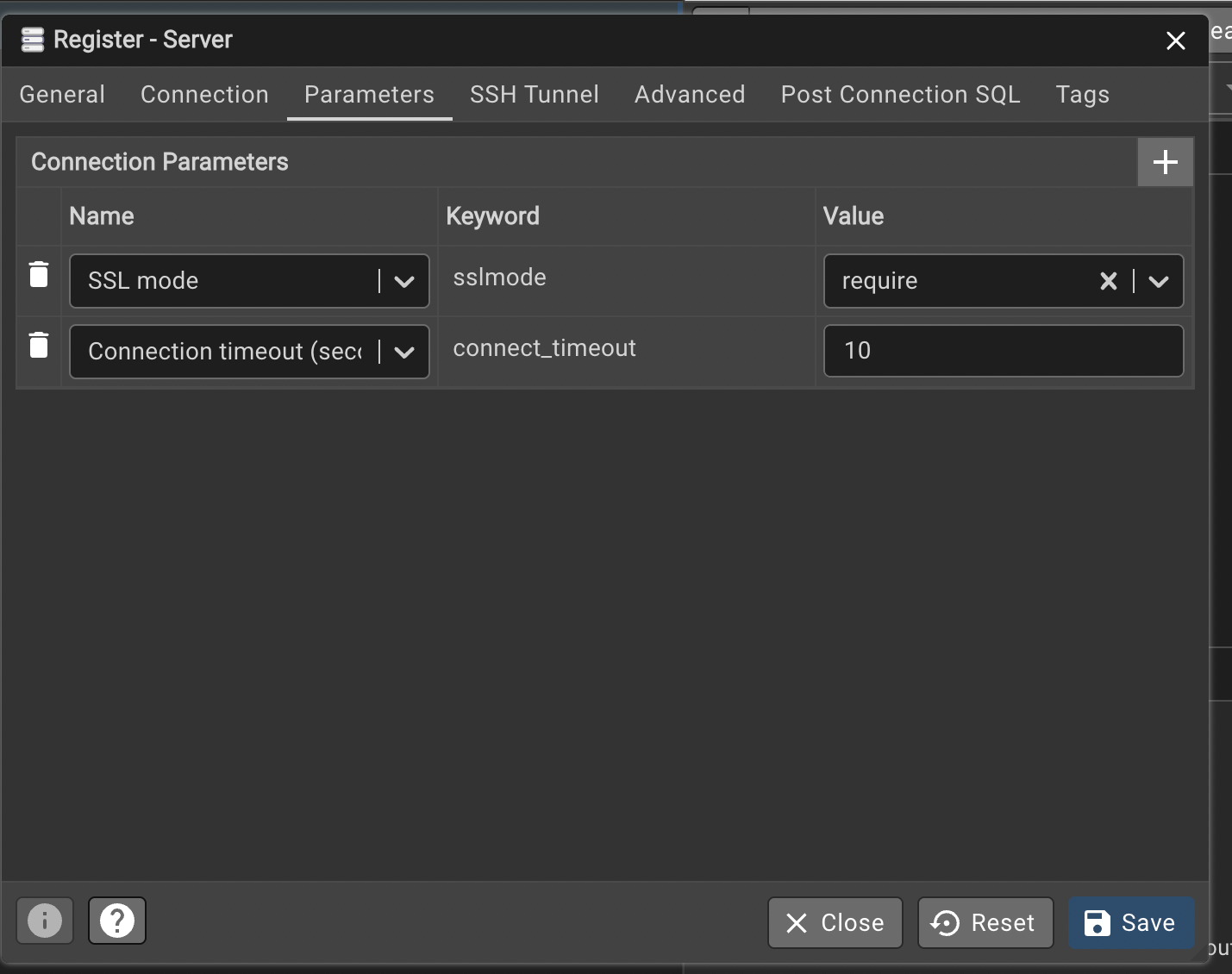
Option 2 – Connect with a GUI Client (e.g., pgAdmin)
- Create a new connection in pgAdmin.
- Use the same endpoint, username, and set the password field to the IAM token you generated.
- In the Connection tab, set SSL mode to Require.
Summary
- Create an IAM policy that allows
rds-db:connectfor the specific DB user. - Attach the policy to the IAM user (or role) that will access the database.
- Enable IAM authentication for the DB user with
GRANT rds_iam. - Generate a short‑lived authentication token via the AWS CLI.
- Use the token as the password in
psqlor any PostgreSQL client (with SSL required).
You’re now able to connect to Amazon RDS for PostgreSQL using IAM authentication!
Last thought
Remember, PgAdmin can’t generate a token. So, after a session times out you have to generate another token to get access to the DB. A token is valid for only 15 minutes—that’s the window to connect. Once the connection is established, it won’t hamper the session; you can use that token to talk to the DB indefinitely—until the session ends for some other reason.
It may seem annoying to some, but I see the security benefit here. I know what I’ll do the next time a developer asks for DB credentials. Do you?