A beginners guide to Git and Github
Source: Dev.to
Definition of Git and GitHub
These two terms may seem familiar to someone new, but they are not the same.
- Git – a free, open‑source tool used for tracking changes in files and managing version history locally.
- GitHub – a web‑based platform that provides repository hosting, team collaboration, and project‑management features.
In short: you do not need GitHub to use Git, but you need Git to work with GitHub.
Connecting Git to a GitHub Account
Install Git – download it from the official Git website.
Create a GitHub account – if you don’t have one already.
Configure Git with your credentials – open a terminal (or Command Prompt) and run:
git config --global user.name "Your Name"
git config --global user.email "you@example.com"
These values will be attached to every commit you make.

Create a repository on GitHub – log in to GitHub.com, click the + sign at the top‑right, and select New repository.
Name the repository and click Create repository.
Authentication – when you push to a GitHub repository from Git, you must authenticate either via HTTPS or SSH:
- HTTPS (recommended for most users) – you can cache your credentials with a credential helper.
- SSH – generate an SSH key pair on each computer you use and add the public key to your GitHub account.
You now have Git and GitHub set up, allowing you to store projects as backups and share your work globally.
What Is Git and Why Is Version Control Important?
- Git is a free, open‑source distributed version‑control system.
- A Version‑Control System (VCS) tracks and records changes to files (or groups of files), letting you recall any previous iteration when needed.
Version control enables people in different locations to collaborate on the same project. With Git, each developer can work locally, commit changes, and then synchronize those changes to a shared repository so others can see the latest version.
Importance of Version Control
- Reversion – Detailed tracking makes it easy to roll back to an earlier version if necessary.
- Attribution – Every change is linked to the team member who made it.
- Branching – Teams can work on separate branches (features, bug‑fixes, experiments) and later merge them.
- Concurrency – Multiple developers can work simultaneously while Git helps prevent conflicts.
- Organization & Communication – Commit messages explain what changed and why, improving project clarity.
Git Push
The git push command transfers commits made on a local branch to a remote repository (e.g., GitHub).
git pushExample Workflow: Creating a New Repository and Pushing Your First Commit
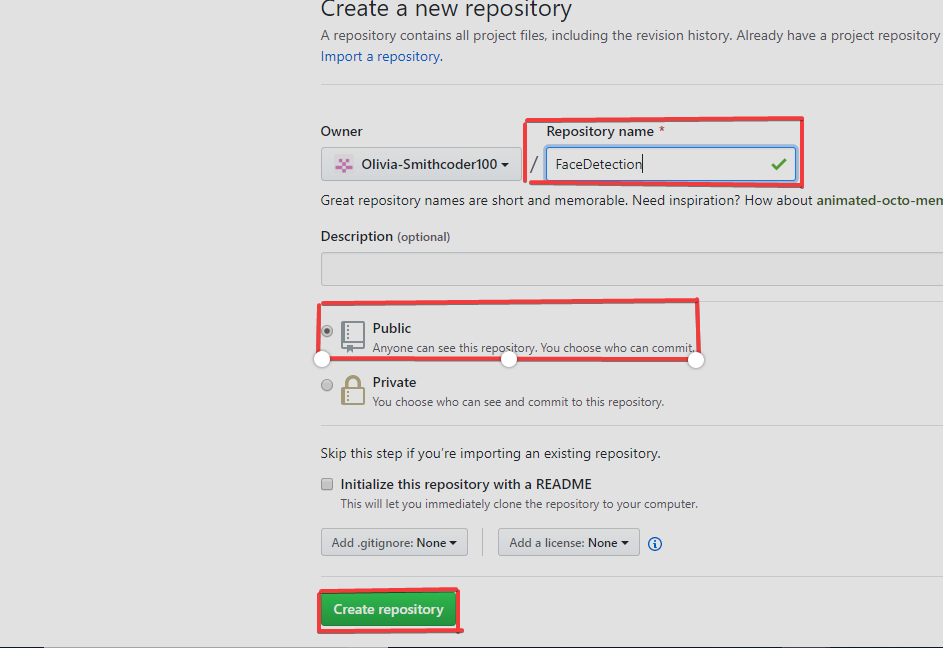
Create a new repository on GitHub
- Click the + sign → New repository.
- Fill in the repository name, description, and set it to Public (free).
Open Git Bash (or your preferred terminal).
Navigate to your project folder
cd /path/to/your/project
pwd   # prints the current directory (optional)
Initialize the Git repository
git init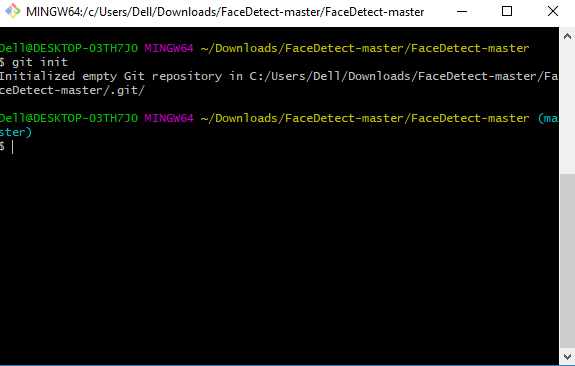
Add files to the repository
git add .
git status   # shows which files are staged
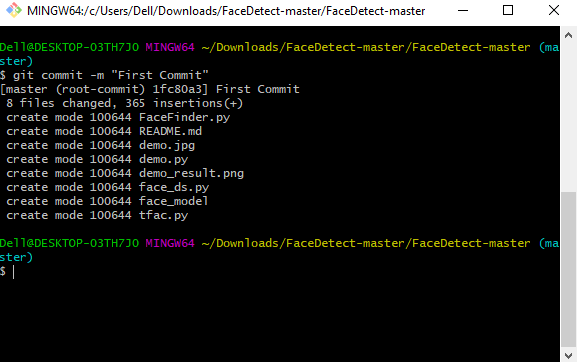
Commit the staged files
git commit -m "Add initial project files"Commit messages should be concise (≈50 characters) and written in the imperative mood, describing what changed and why.
Add the remote (GitHub) repository
git remote add origin https://github.com/your‑username/your‑repo.gitPush the commit to GitHub
git push -u origin main # or whatever branch you are using
Your code is now stored on GitHub and ready to be shared or collaborated on.
Copy Your Remote Repository’s URL and Push
The HTTPS URL is copied from the GitHub page that hosts the remote repository.
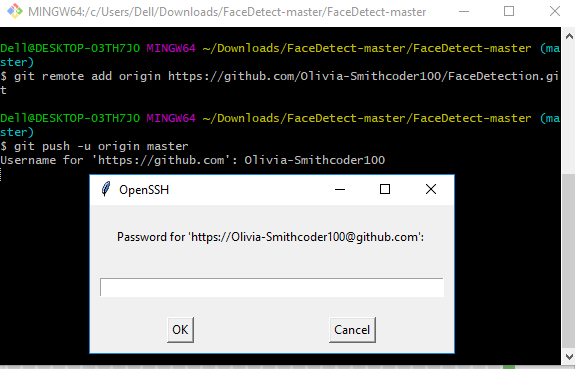
git push -u origin mainorigin– default name of the remote repository.-u(or--set-upstream) – sets the upstream (tracking) branch.main– the branch you are pushing.
You will be prompted to enter your GitHub username and password (or a personal access token).
How to Pull Code from GitHub
- GitHub Desktop provides a graphical interface for these operations.
- Open GitHub Desktop.
- Click the File menu → Clone repository… (first time) or select an existing repository from the list (to get updates).
- If cloning:
- Choose the repository from your GitHub account or paste the URL.
- Select a local path.
- Click Clone.
- If updating an existing repo:
- Click Fetch origin or Pull origin in the top bar to sync your local branch with the remote.
Tracking File Changes Using Git
Tracking file changes with Git enables effective version control by recording updates and maintaining a clear history of modifications.
- Keeps a complete version history of files.
- Helps review and manage changes over time.
Viewing Commit History of a File
Check the current status of the repository (good practice before viewing history).
git statusThis displays untracked, modified, or staged files.
View the change history of a specific file.
git log -- <file>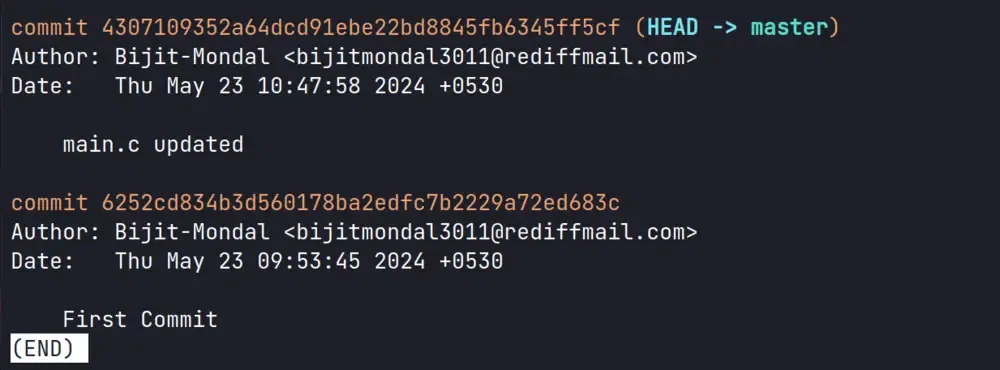
View the changes made in a particular commit.
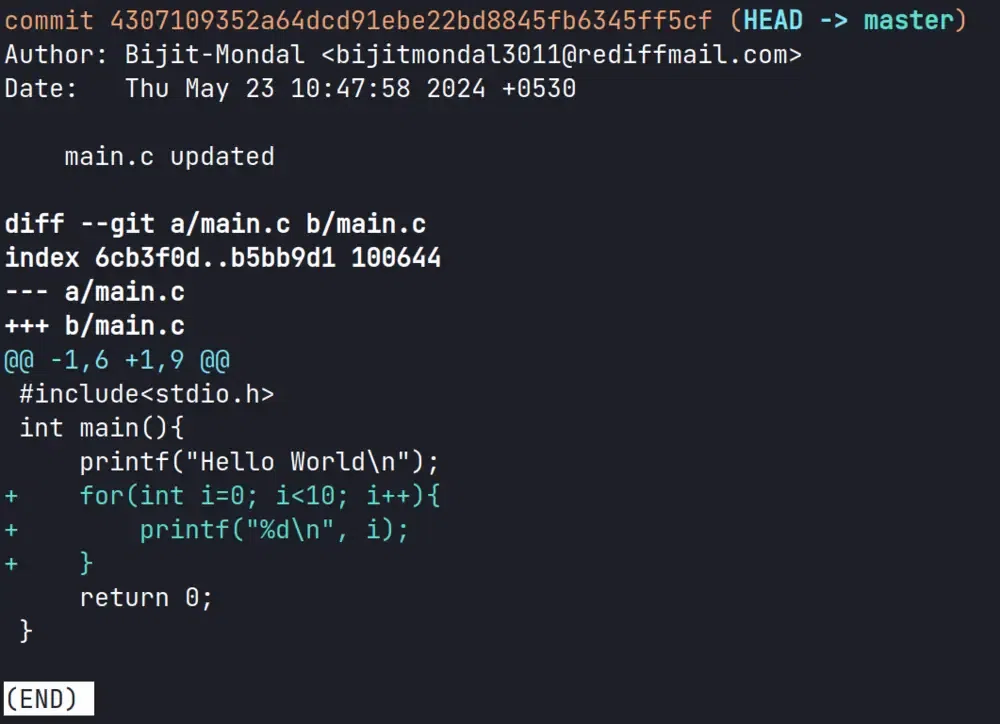
git show <commit-hash>