
5 hidden features I didn’t know my Samsung phone had
Source: Android Authority
 Joe Maring / Android Authority
One of my favorite things about owning a Samsung phone is just how much extra it offers on top of Android. And having used Galaxy phones for almost five years, I always thought I knew pretty much every trick and hidden feature One UI had to offer. Turns out, I was giving myself way too much credit.
Over the past few months, I’ve stumbled across several features I had no idea existed. What’s funny is that most of them weren’t buried deep inside menus or locked behind Good Lock modules. They were all sitting in plain sight the entire time. Now that I’ve found them, though, I feel somewhat obligated to share them so others don’t miss out on them the way I did.
What’s the most underrated part of One UI?
1 votes
A compass and a ruler
 Pankil Shah / Android Authority
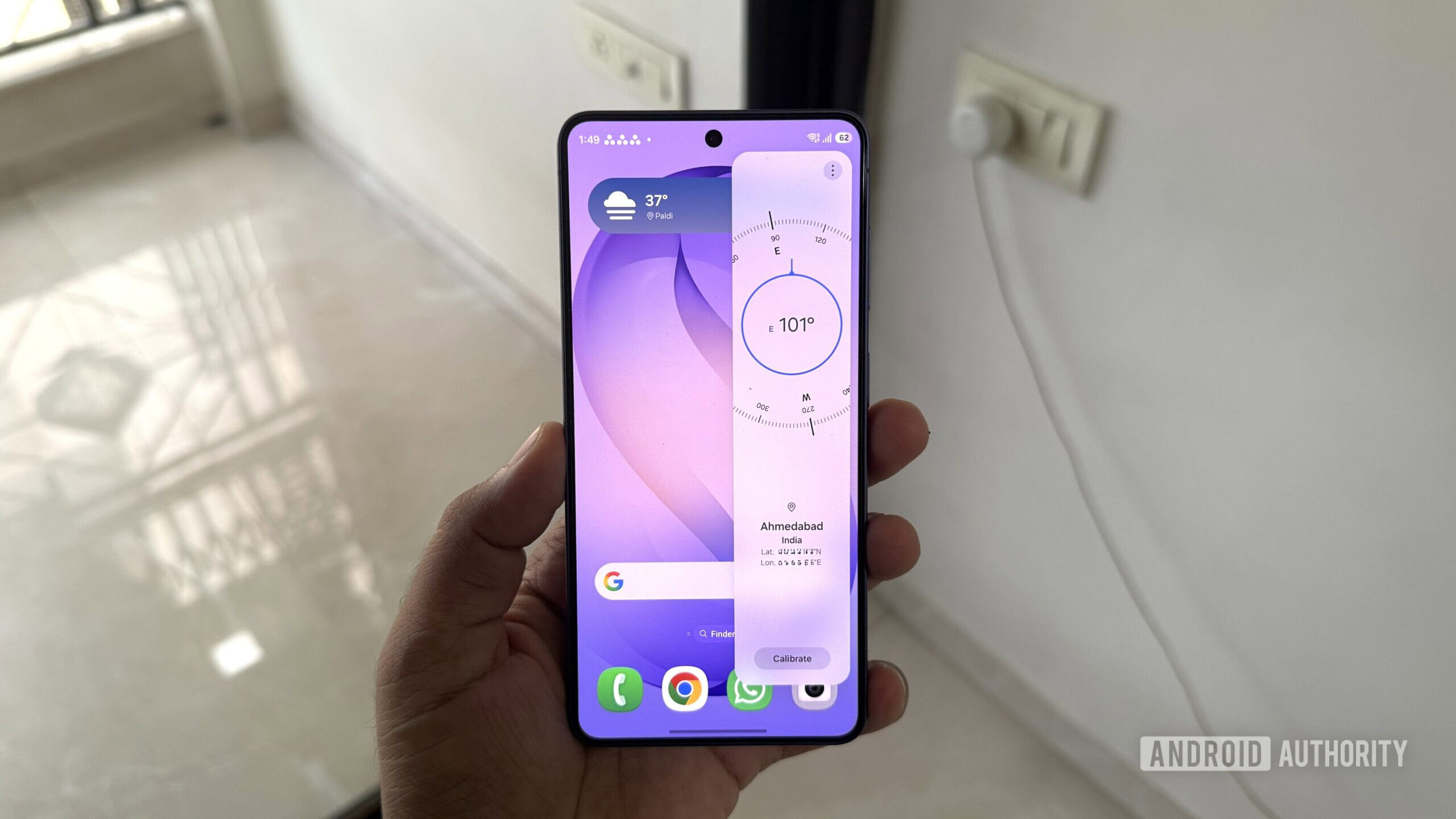
I’m one of those rare Galaxy users who keep the Edge Panel disabled. Not because I don’t find it useful, but because I somehow keep opening it accidentally while swiping left from the side of the screen. And that’s also why I never realized the Edge Panel had a compass inside it.
Once you enable the Tools panel by heading to Settings > Display > Edge panels > Panels, you can pull up the built-in compass on almost any screen. It’s pretty accurate, and it even shows your current coordinates. Now, I don’t exactly need to navigate forests or hike trails on a daily basis, but it’s nice knowing I don’t need to install a separate app just to check my bearings.
Inside the same panel, tapping the three-dot menu and choosing Ruler literally turns the right edge of your phone into a ruler. You can change its unit from centimeters to inches depending on what you need, and there’s even an option to calibrate it for better results.
Document scanner
 Pankil Shah / Android Authority
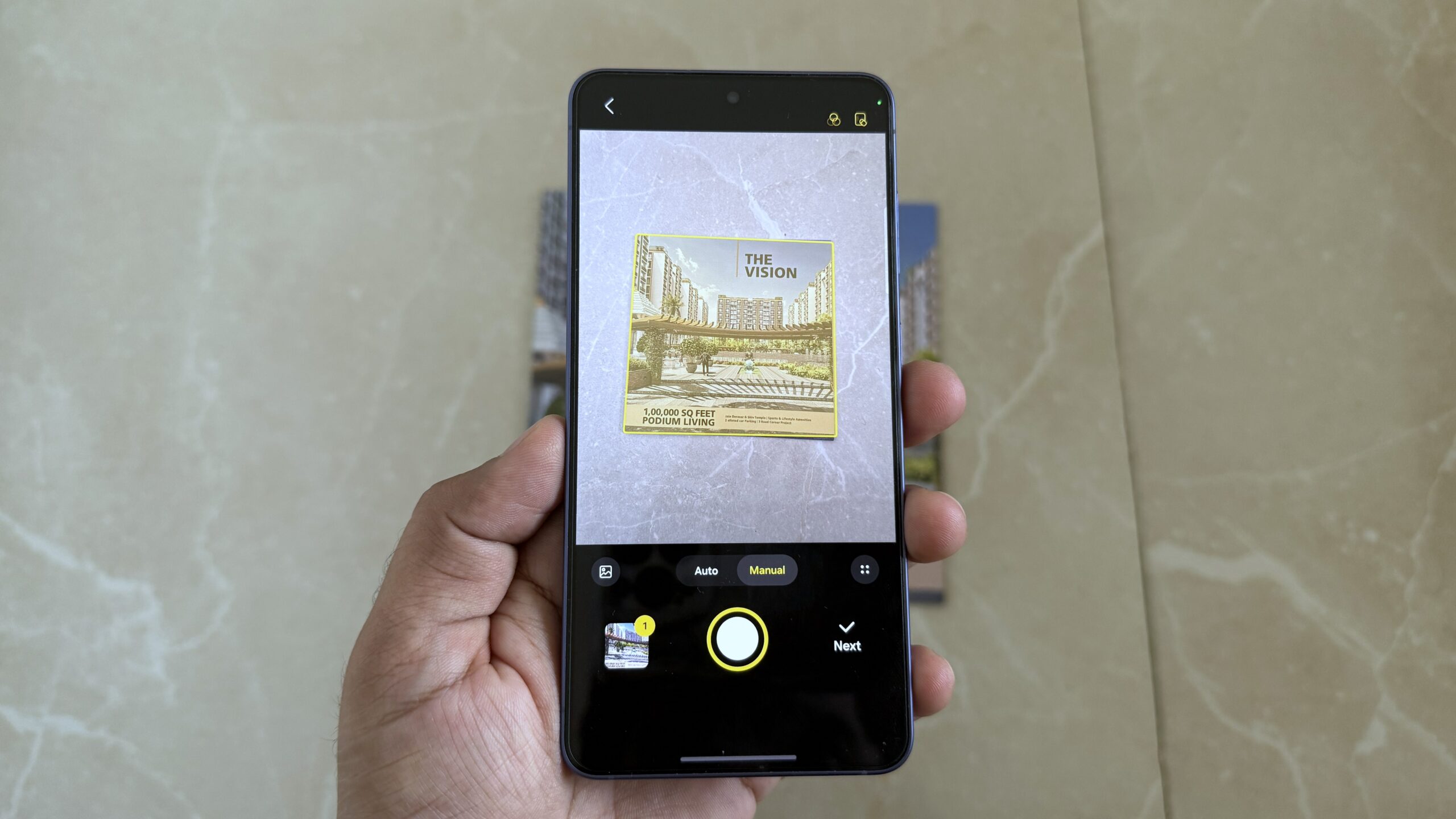
For the longest time, I used to rely on third-party apps whenever I needed to scan a document. You know the type. Scan a page, and five seconds later, you get hit with an “Are you enjoying the app?” pop-up. And I had no idea my Galaxy phone had a perfectly capable document scanner built right into the Camera app all along.
You can simply point your Galaxy phone’s rear camera at a document, and it’ll detect it automatically. Once it does, tap the Scan button, and the app will save it. You can then keep scanning more pages if you want. There’s even a built-in editor that lets you adjust the document’s corners, apply filters, and clean up imperfections like accidental fingers in the frame, folded corners, or that weird moire pattern. Once you’re done, you can save the scan as an image or a PDF.
Although the document scanning feature has been around in One UI for a while, the option to scan multiple pages and edit them is currently only exclusive to the Galaxy S26. If you have a different model, you’ll only be able to scan one-page documents — unless of course, Samsung changes that with an update.
Wi-Fi inspection tool
 Pankil Shah / Android Authority
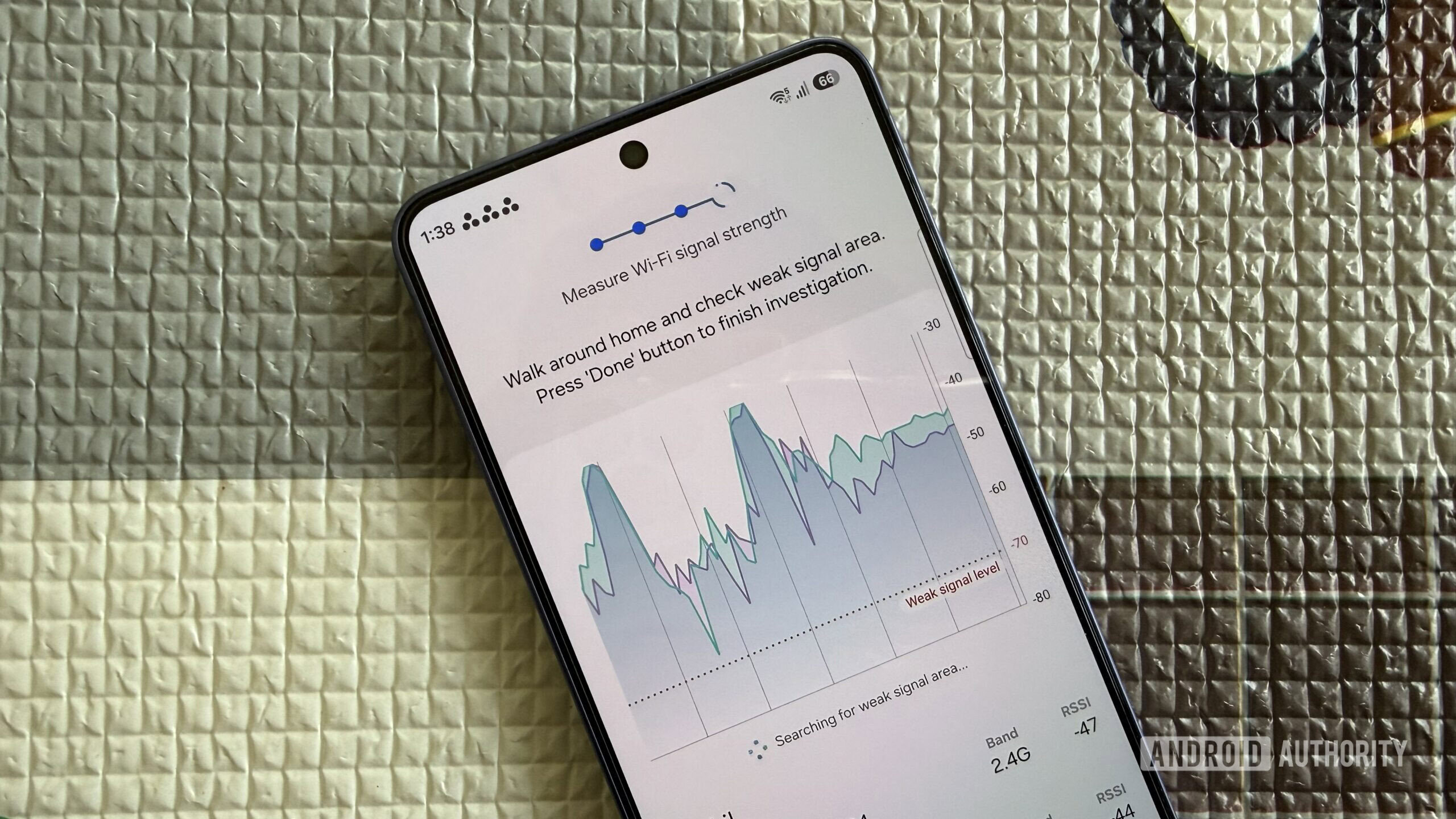
Router placement is a key factor behind how good your Wi-Fi actually feels. But the problem is, finding out the “right” spot isn’t exactly easy with walls, furniture, appliances, and other objects all getting in the way. But thankfully, Samsung phones come with a Wi-Fi inspection tool that can actually map out the signal strength around the house.
To access it, head to Settings > Wi-Fi, tap the three-dot menu, and choose Intelligent Wi-Fi. From there, scroll all the way down and tap Intelligent Wi-Fi several times until you see the Connectivity Labs option. Yes, Samsung basically hides advanced Wi-Fi tools behind what feels like a cheat code.
Inside Connectivity Labs, you’ll find a bunch of interesting options, but the most useful one is Home Wi-Fi inspection. Tap it, select the Wi-Fi network you want to test, and hit Next. Then, just walk around the house, and your phone will record the signal strength in real time. It’ll also create a graph so you can refer to it at the end of the scan. What I like the most is that it even lets you inspect multiple Wi-Fi networks at once. I used it to compare my router’s 2.4GHz and 5GHz bands to see how coverage changed from room to room.
Object identifier, color detector, and text color
 Pankil Shah / Android Authority
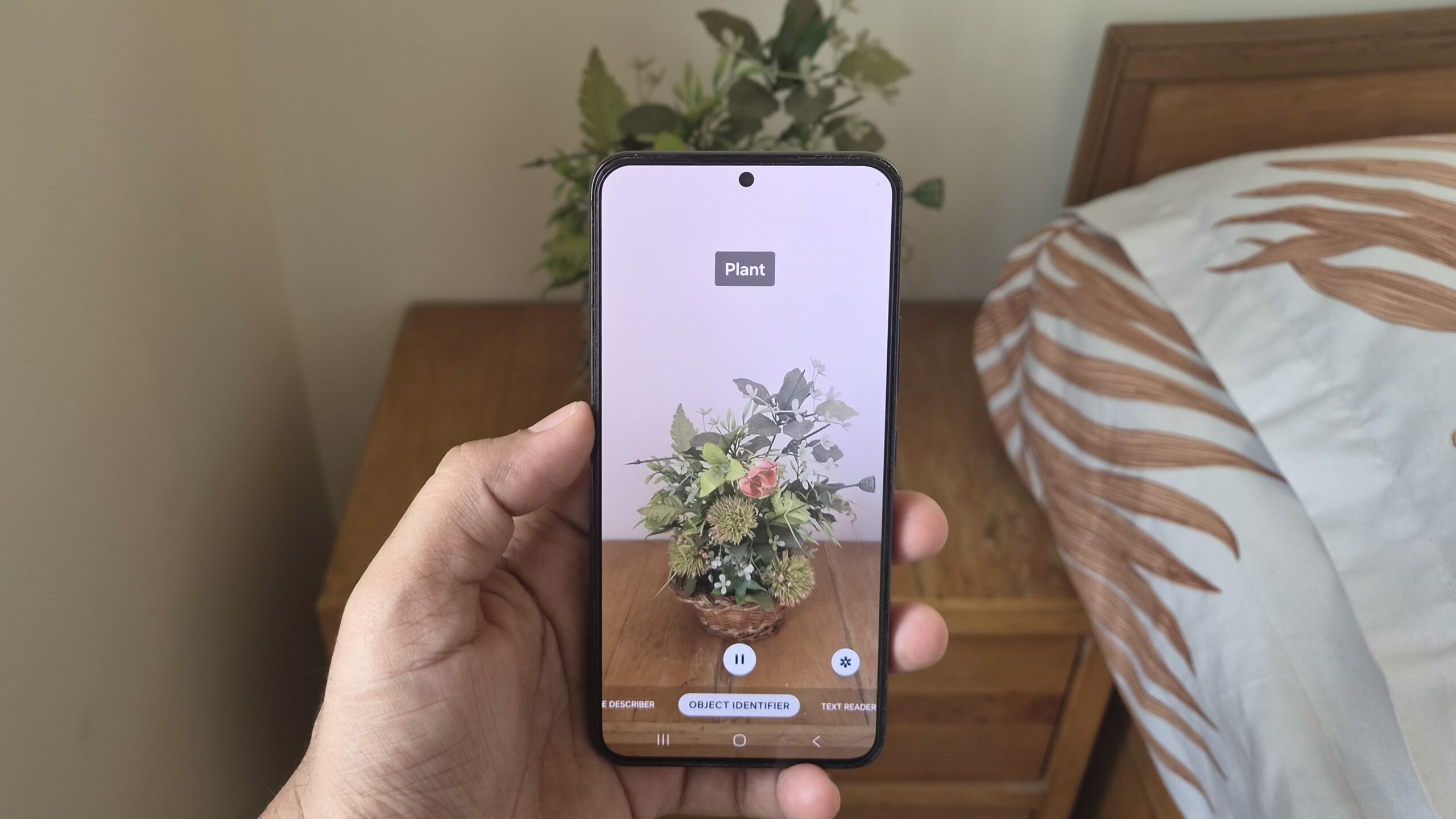
Like most Galaxy users, I’ve largely ignored Bixby over the years because I’ve never really felt the need to use it. But it does have a few useful tools that I find myself using every now and again, and one of them is the object identifier. To access it, go to the More tab inside the Camera app and tap the eye-shaped icon. You can also launch Bixby Vision directly from the app drawer.
Once inside, go to the Object Identifier tab and point your phone’s camera at anything. Your Galaxy phone will identify it in real time. You can even upload an image from the gallery if you’ve already captured something. This is nothing like Google’s Circle to Search, though. For instance, if you point at a computer keyboard, it’ll just say it’s a keyboard and not identify the exact model.
There’s even a Color Detector tab that works similarly. Instead of describing objects, it tells you their color. The one I find the most useful, though, is the Text Reader. Since I’m near-sighted and don’t always wear my glasses, I find this helpful in reading fine print on a product label or receipt.
Measuring tool
 Pankil Shah / Android Authority
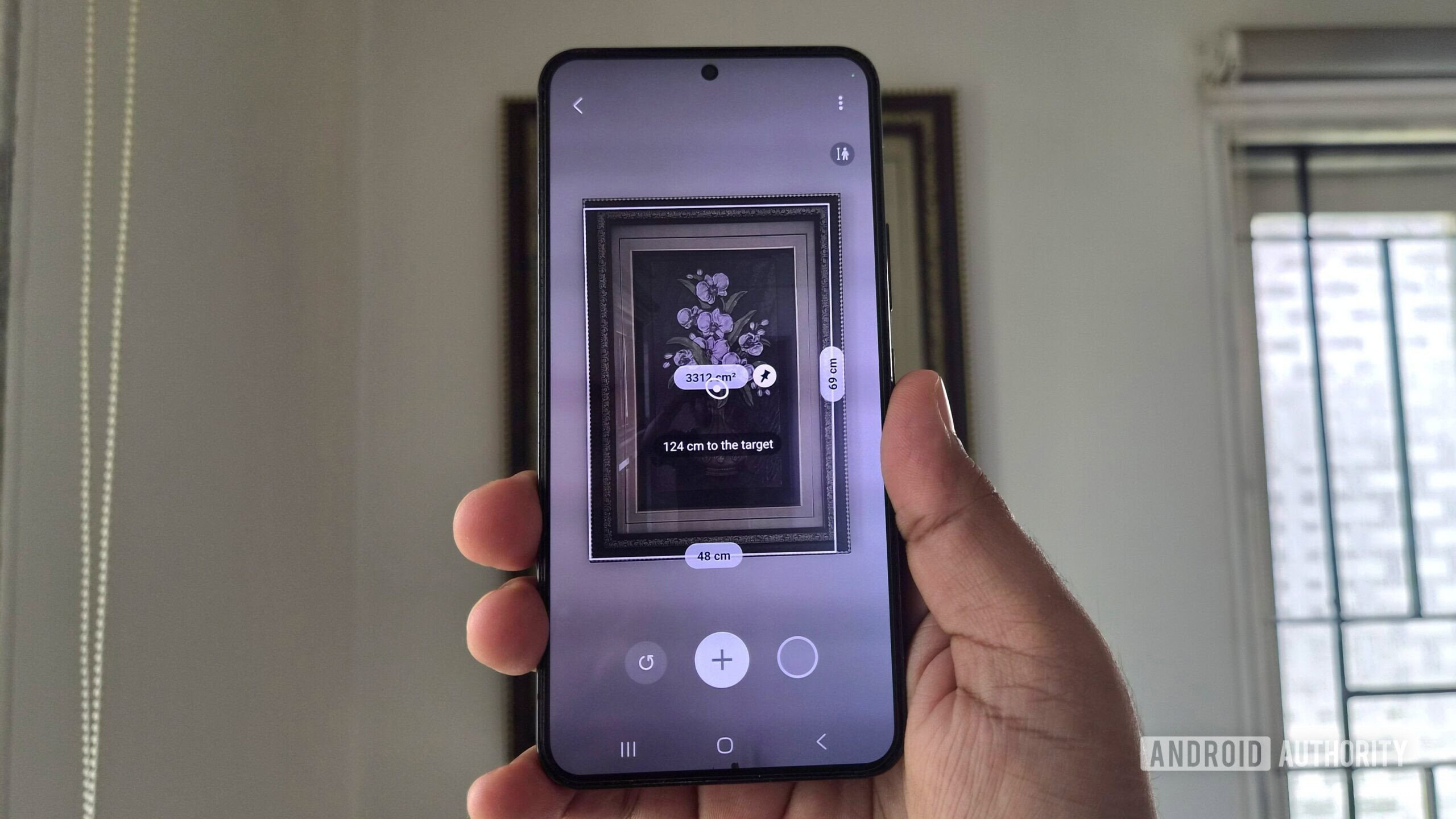
This is the one that surprised me the most. I never thought my Galaxy phone could replace the humble tape measure, but it actually comes pretty close. Almost all Galaxy phones have the necessary hardware and AR technology to calculate distance, area, volume, and even a person’s height. All you need to do is grab Samsung’s Quick Measure app from the Galaxy Store.
Once installed, open the app and point your phone’s camera at any object. The first thing it’ll show is how far that object is from the camera lens. I’ve found it quite useful for simple things, like checking how far my monitor is from where I’m sitting. The app is also pretty good at detecting the usual shapes. Point to a rectangle, and it’ll automatically measure its length, width, and area. And if it’s something the app can’t recognize automatically, you can still measure it manually. Tap the plus icon, select a starting point and an ending point, and Quick Measure will calculate the length or height. It works the same for measuring the area of a room too.
Of course, I wouldn’t rely on it for renovating my house or doing anything where accuracy matters, but it’s pretty useful for rough estimates like — figuring out if a desk will fit through a doorway.
So these were some of the features I had no idea were hiding in my Galaxy phone. I’d like to think I finally know my Samsung phone inside out, but I wouldn’t be surprised if there are still a few gems I’ve yet to discover.
Follow
Thank you for being part of our community. Read our Comment Policy before posting.